
Approvals
Approval is what makes the asset register trustworthy. A document changes nothing until someone with the authority to agree has agreed.
This chapter covers both sides: setting up who approves what, and doing the approving.
How approval works
Each document type has a flow. A flow is a sequence of steps, and each step has approvers. Every step must approve before the document is approved; if any step rejects, the document goes back to its creator.
Steps are sequential. Step 2 is not notified until step 1 has approved, which is what lets a flow model a real chain of authority.
WARNING
If no flow is active for a document type, submitting it approves it immediately with no review at all. This is intended — not every company wants approval on everything — but it means forgetting to configure a flow silently removes the control. Check every type you care about.
Configure a flow
Requires the capability to access approval configuration. Configuration → Approval.
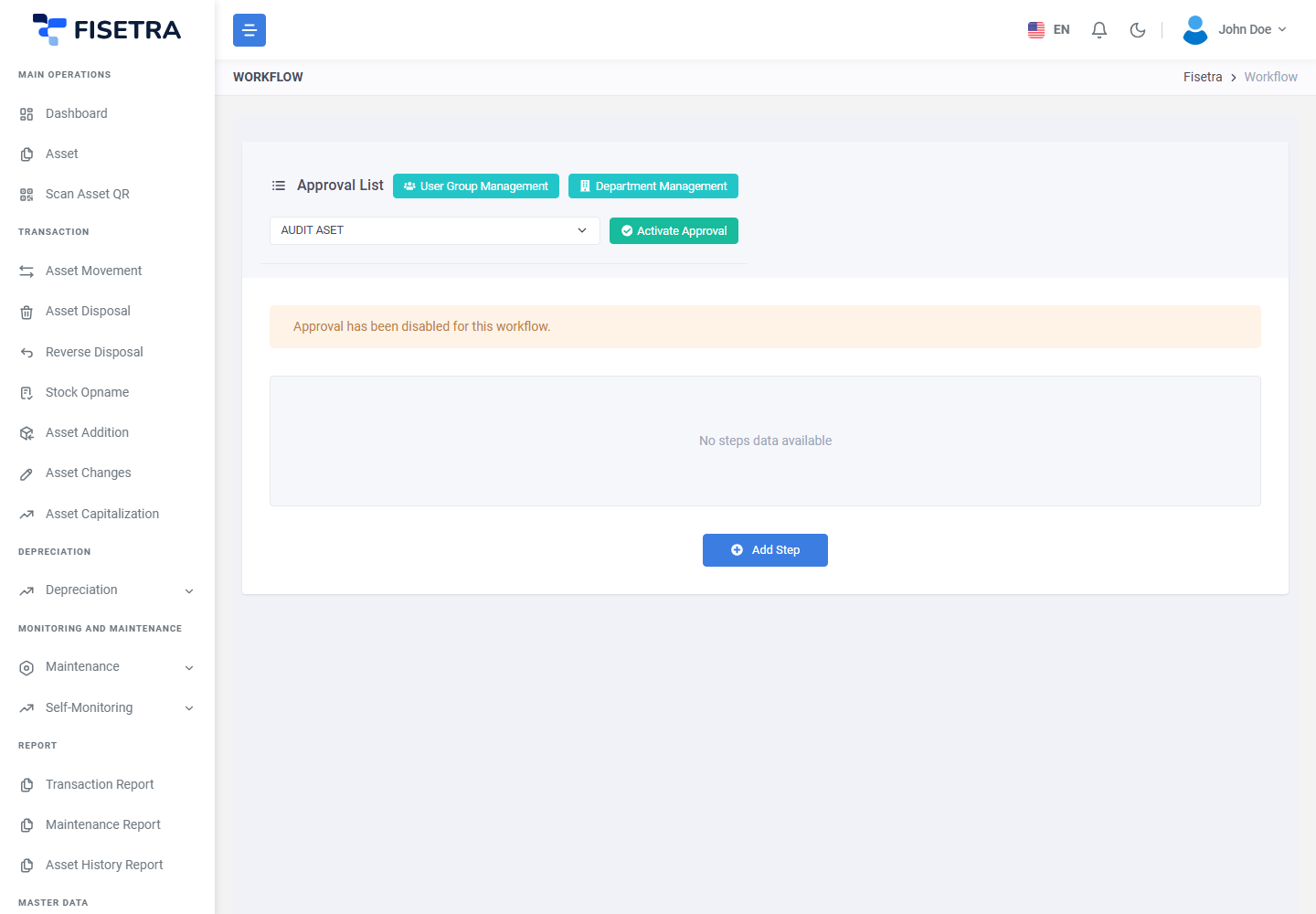
- Open Configuration → Approval.
- Choose the document type: Asset Addition, Asset Changes, Asset Movement, Asset Disposal, Asset Reverse Disposal or Asset Capitalization.
- Activate the flow.
- Add steps in order. Steps can be reordered and removed later.
- For each step, choose who approves.
Stock Opname itself uses creator-led review and completion, not this approval flow. Its generated asset-change documents are automatically approved; other generated documents follow normal approval, with any prerequisite documents approved first. See Stock Opname.
Who can approve a step
| Approver type | Meaning |
|---|---|
| A specific user | One named person |
| An approver group | Any member of the group can approve on the group's behalf |
| A department coordinator | Whoever holds that role for the relevant department |
Prefer groups and coordinators over named individuals. A flow built on one person's name stalls the moment that person is on leave; a group survives it.
Approver groups
Configuration → Approval → User Group manages groups: create a group, add members, and use it in any step of any flow.
Department coordinators
Configuration → Approval → Department User assigns coordinators per department, so a step can route to "the coordinator of the department this document belongs to" without naming anyone.
Changing a flow later
Changes apply to documents submitted afterwards. Documents already in flight continue under the flow they started with, so editing a flow will not disturb work in progress.
Approve a document
There are two ways: in the application, or from the email link.
In the application
- Open the document from its Transaction menu, or follow the notification.
- Review the header, the asset list, and any attachments.
- Select Approval Confirmation in the toolbar.
- Choose Approve or Reject in Approval Type.
- Write a Message. It is required, and it is the only thing the creator has to work from — say what is wrong and what would fix it.
- Attach a file if it supports your decision.
- Confirm.
From an email link
Approvers get an email with a link that opens a single page showing the document, where they can approve or reject without signing in.
This is for people who approve occasionally and should not have to learn the application. The page shows the same document details, asset list, attachments and history.
WARNING
The link is personal and single-use. Do not forward an approval email — anyone with the link can act as you. If an approval email reaches the wrong person, ask an administrator to resend it to the right one.
The page also offers Go to Document (Login) for anyone who does want the full view.
What happens next
If you approve and there are more steps, the next step's approvers are notified. If yours was the last step, the document becomes APPROVED, the change is written to the asset register, and Carbon Copy recipients are told.
If you reject, the document returns to its creator as an editable DRAFT with your message. There is no separate "rejected" queue — see Document basics.
Rejecting is not a rebuke. It is the normal way to send something back for a correction, and the creator resubmits with Confirm Fix.
The approval log
Log in the document toolbar shows every approval action: who acted, what they decided, when, and the message they left. It is system-written and cannot be edited. The same log is visible from the public approval page.
Chasing an approval
If an approver has not responded, the notification email can be resent from the document. That does not skip anyone — it re-sends to the current step's approvers.
If the right person genuinely cannot act, an administrator can change the flow for future documents, but the document in flight stays with its original approvers.
Common problems
| Problem | Why | What to do |
|---|---|---|
| A document was approved with no review | No flow is active for that type | Activate one in Configuration → Approval |
| Nothing to approve, though you are an approver | It is not your step yet, or you are not on this document's flow | Check the document's Log |
| The email link does not work | It has been used already, or has expired | Ask for the notification to be resent |
| Cannot reject without a message | The message is required | Explain the reason — the creator has nothing else to go on |
| An approver has left the company | The flow names them directly | Update the flow, and prefer groups or coordinators |
| Configuration → Approval is missing | Your role does not include approval configuration | Ask your administrator |