
Reverse disposal
Transaction → Asset Reverse Disposal brings a disposed asset back into active service. Use it when something written off as lost turns up, or when a disposal was recorded in error.
This is possible because disposal never deletes anything — it marks the asset as disposed and keeps its record. Reverse disposal simply lifts that mark.
The lifecycle, submitting, fixing and voiding are in Document basics.
Create the document
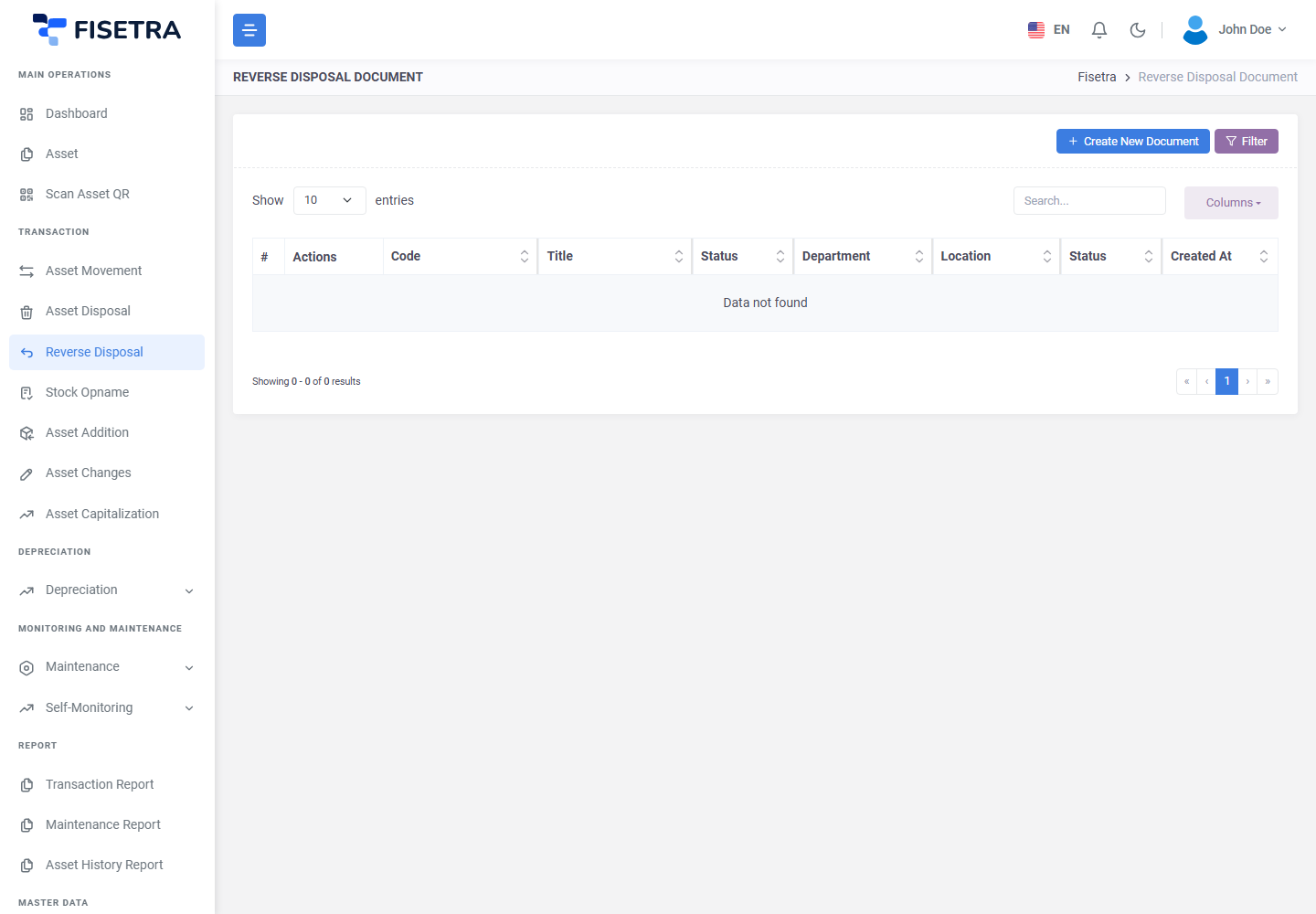
- Open Transaction → Asset Reverse Disposal and select the create button.
- Fill in the header: the title, the department and location context, and the status the assets should have once restored.
- Save. The number is generated and the status is
DRAFT.
The status matters. An asset returning after months in storage is rarely in the same condition it left in, and this is the natural moment to record that.
Add the assets
- On the Asset List tab, add the assets to restore.
- Only disposed assets appear here — this list is the mirror image of the one on a disposal document.
- Add them one at a time or use the bulk option.
You do not need the original disposal document, and you are not reversing it as such. You select the assets that are currently disposed and restore them. One reverse disposal can therefore restore assets that were disposed on several different documents.
Attachments and Carbon Copy
Attach whatever supports bringing the asset back — a note explaining where it was found, an authorisation to reverse an incorrect disposal. Add anyone who needs to know on Carbon Copy.
Submit and approve
Select Document Confirmation. The document becomes PENDING and approvers are notified.
On approval:
- The disposed mark is removed from each asset
- The assets return to the active asset list
- Their depreciation data is brought back in line
- Each gets a history entry pointing at this document
If the document is voided or rejected, nothing happens — the assets stay disposed.
If it is rejected it returns to you as a DRAFT; fix it and use Confirm Fix.
Check the asset afterwards
A restored asset is active again, but the world moved on while it was gone. Worth reviewing:
| Check | Why |
|---|---|
| Location and responsible person | It may not be where it was, or with whom |
| Depreciation | The depreciation date was changed at disposal, so revisit it. See Depreciation |
| Status and condition | Record what state it came back in |
Location and responsible person are corrected with an asset movement; values with asset changes.
Common problems
| Problem | Why | What to do |
|---|---|---|
| The asset is not in the list | It is not disposed, or is outside your visibility | Only disposed assets can be restored. Check your assignments |
| Depreciation looks wrong after restoring | The depreciation date was changed at disposal | Review it in Depreciation |
| The asset came back in a worse condition | Expected | Set the status on the header, or raise an asset changes document |
| Restored the wrong asset | It happens | Dispose of it again with asset disposal |