
Reports
Report in the sidebar holds three reports, each answering a different question.
| Report | Answers |
|---|---|
| Transaction Report | What has been done to our assets? |
| Maintenance Report | What work has been carried out, and what is outstanding? |
| Asset History Report | What has happened to these particular assets? |
Each has its own view capability, so you may see fewer than three.
INFO
Every report respects your data visibility. Two people running the same report with the same filters can legitimately get different results — see Users and access.
Transaction Report
Covers the transaction documents: additions, changes, movements, disposals, reverse disposals, stock opname and capitalization — with their numbers, dates, statuses and the assets involved.
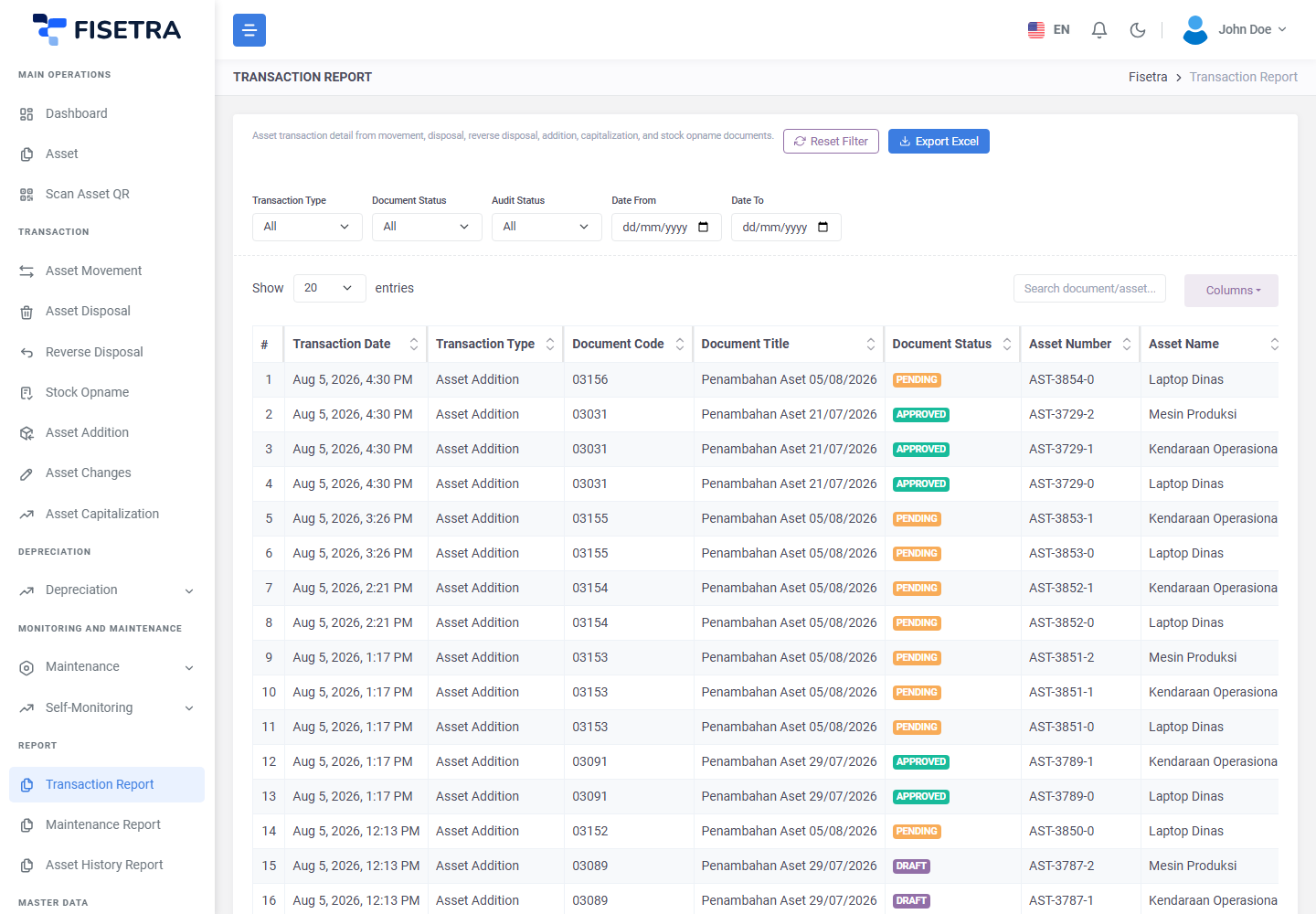
Use it for period-end summaries, for checking what is still awaiting approval, and for answering "what changed last quarter".
Filter by document type, status, date range, department, location and category.
Filtering by status is the quickest way to find work in progress: PENDING documents are waiting on someone, and DRAFT documents were started and never submitted. A long list of old drafts usually means people are creating documents and abandoning them.
Maintenance Report
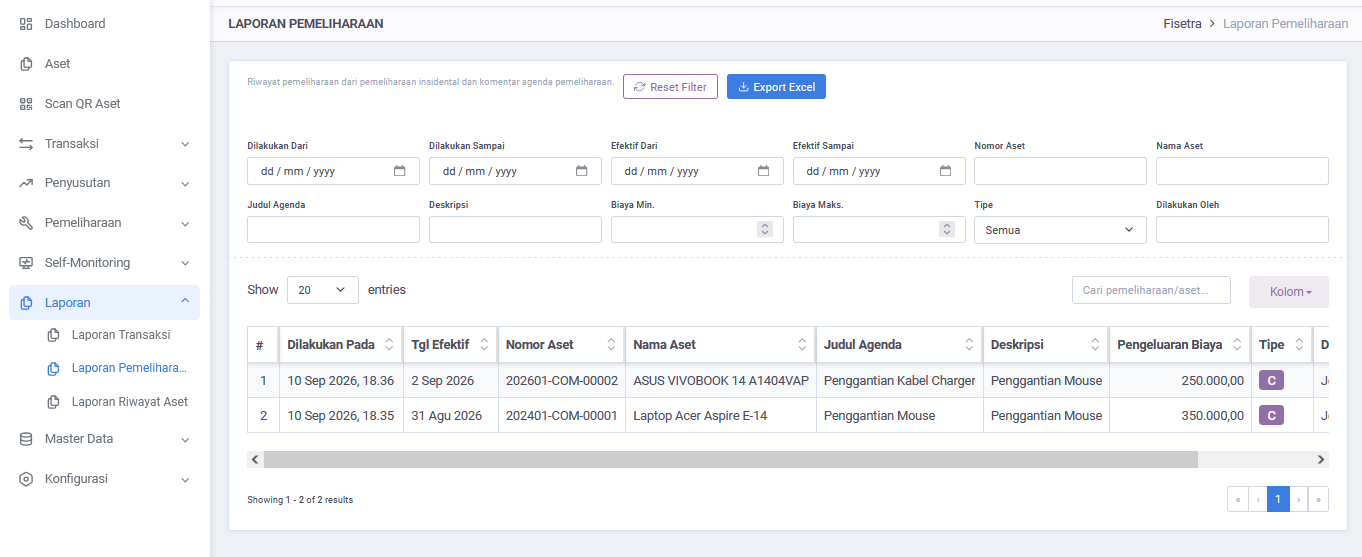
Covers maintenance across assets: what was scheduled, what was completed, when, and against which asset and category.
Use it to check that scheduled work is actually happening, to see how much maintenance an asset is absorbing, and to plan.
Filter by asset, category, status and date range.
Grouping by asset is a useful habit — an asset appearing repeatedly is telling you something that a single maintenance record cannot.
Asset History Report
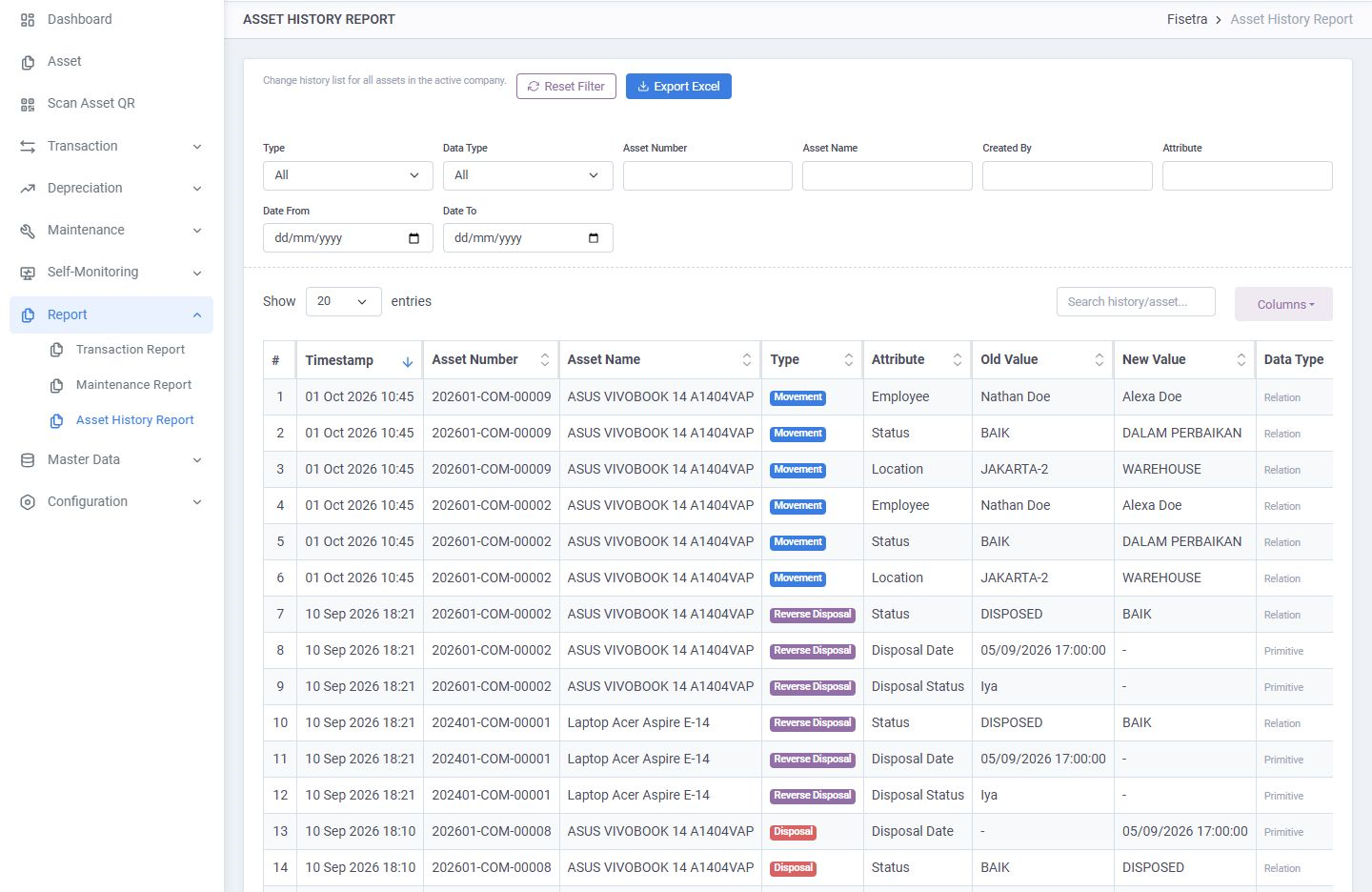
The audit trail across many assets at once: every recorded change, what it was, when, and which document caused it.
Use it for audits, for investigating a discrepancy, and for answering "who moved this and when". Where the other reports summarise activity, this one reconstructs it.
Filter by asset, change type, date range and organisational context.
For a single asset, its own History tab is quicker — see Managing assets.
Filtering
All three use the standard filter panel from Navigating Fisetra, with Date Range Filters and, where relevant, Value Range Filters.
Both ends of a range are optional, so a start date alone means "from here onwards". Filters combine, so an empty report usually means the filters are narrower than intended rather than that nothing happened — reset and widen before concluding anything.
Exporting
Every report exports.
- Set your filters
- Start the export
- Keep working while it is prepared
- Download the file when it is ready
Exports are prepared in the background rather than downloaded on the spot, so a large export does not tie up your browser. The export contains exactly what your filters selected — set them before starting, not after.
WARNING
Exported files are deleted automatically after 24 hours. Download anything you need to keep, and re-run the export rather than hunting for an old file.
Exported data leaves Fisetra's permission model behind. A spreadsheet of your asset register is as sensitive as the register itself — handle it accordingly.
Dashboard versus reports
The dashboard is the live overview: totals, trends and items needing attention, for a quick look. Reports are for a defined question over a defined period, with filters and an export.
Use the dashboard to notice something, and a report to investigate it.
Common problems
| Problem | Why | What to do |
|---|---|---|
| A report is missing from the menu | Your role does not include its view capability | Ask your administrator |
| The report is empty | Filters too narrow, or nothing in that period is within your visibility | Reset the filters; check your assignments |
| Your numbers differ from a colleague's | You have different asset visibility | Compare assignments — both results can be correct |
| The export never arrives | Large exports take time; background processing may be down | Wait and refresh, then contact your system administrator |
| A download link no longer works | Files are removed after 24 hours | Run the export again |
| A recent change is missing | The document has not been approved yet | Only approved documents change the register. See Document basics |