
Getting started
There are two ways to get into Fisetra: you register a new company yourself, or someone invites you into a company that already exists. Which one applies decides where you start.
| Your situation | Go to |
|---|---|
| Your company is not using Fisetra yet | Register a new company |
| You received an invitation email | Accept an invitation |
| You already have an account | Sign in |
Register a new company
This creates the company and your own administrator account in one step. Use it only if you are setting Fisetra up for the first time — if your company is already on Fisetra, ask a colleague to invite you instead, otherwise you will create a second, separate company.
- Open the registration page.
- Fill Company Name and choose Currency. Company Description is optional. The currency becomes the basis for asset values; its symbol follows your selection.
- Fill in your own details: Salutation, User name, Email and Email confirmation.
- Set a Password and repeat it in Password confirmation. The strength indicator under the field updates as you type.
- Select the submit button to finish.
Fisetra sends a verification email. Your account is not active until you open it.
Verify your email
Open the message and select the verification link. That activates the account and you can sign in.
If the email has not arrived after a few minutes, check the spam folder first, then use the resend confirmation link on the sign-in page to send it again. Verification links are time-limited, so if you come back to an old email the link may no longer work — request a new one.
Accept an invitation
An administrator can invite you by email. The invitation is tied to that email address, so accept it with the same one.
- Open the invitation email and select the link.
- If you do not have a Fisetra account, set your name and password on the page that opens. If you already have one, sign in.
- You now have access to that company.
Invitations expire. If yours has, ask the administrator to send it again from Configuration → User Management.
An invitation that arrives while you are already signed in also appears in My Invitations, reachable from the user menu in the top right, where you can accept or reject it.
INFO
Accepting an invitation gets you into the company. It does not decide what you can do there — your administrator sets your role and which assets you can see. If Fisetra looks empty after you join, that is why. See Users and access.
Sign in
- Open the sign-in page.
- Enter your email and password.
- Select the sign-in button.
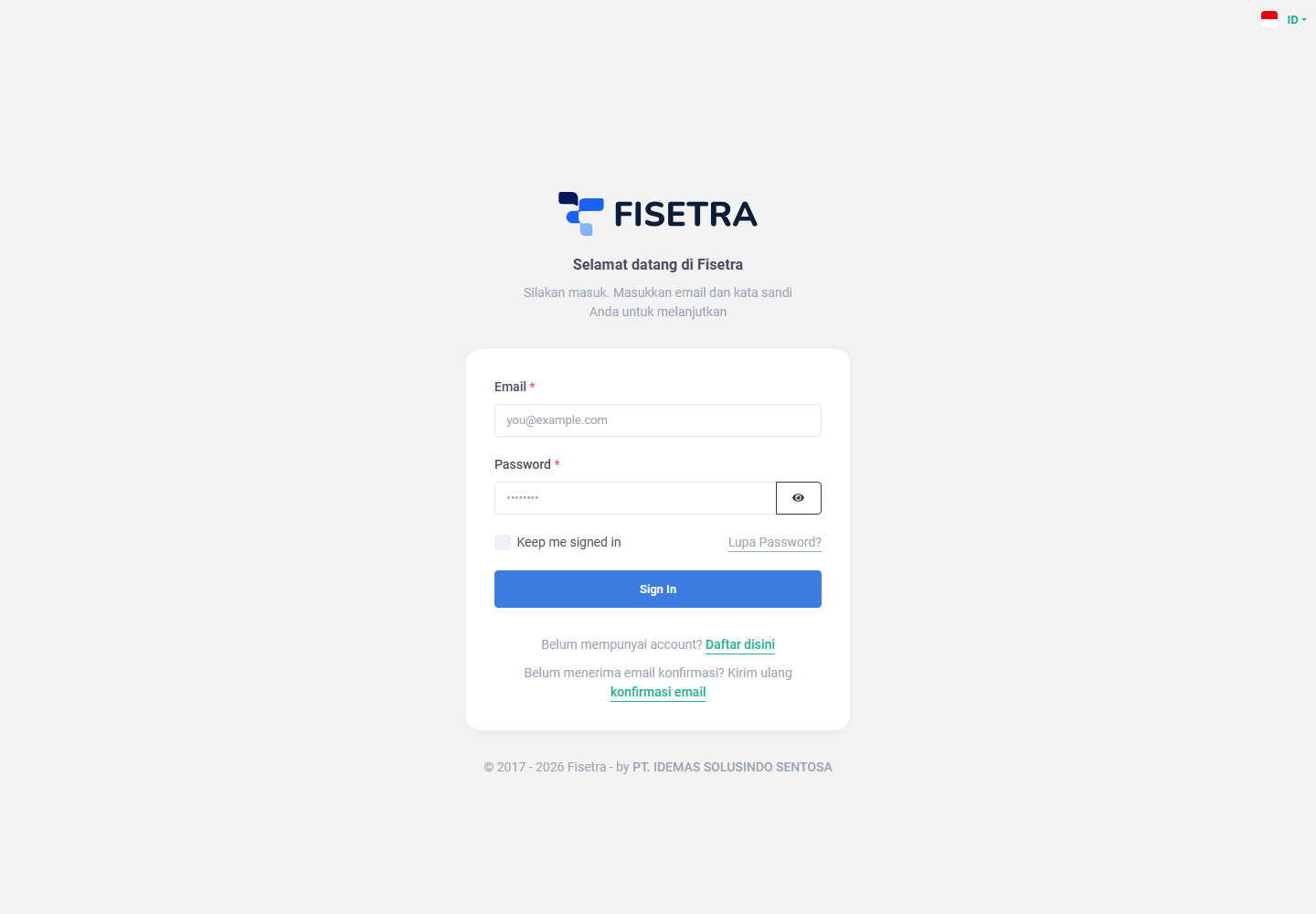
If Unable to sign in right now. Please try again. appears, retry after a moment. Check your connection and use password reset if you cannot confirm your credentials.
Choose your company
If your account belongs to more than one company, Select Company appears straight after sign-in. Pick the one you want and continue.
Everything you do from that point — the assets you see, the menu you get, the documents you can raise — belongs to that company.
A company marked Blocked cannot be opened. Your access there has been suspended; contact that company's administrator.
If you belong to only one company, Fisetra goes straight to the dashboard.
To switch later, open the user menu in the top right and pick another company under Switch Company, or select View All Companies for the full list.
Forgot your password
- On the sign-in page, select Forgot Password?.
- Enter your email address and submit.
- Open the reset email and select the link.
- Enter the 6-digit verification code from the email, then set and confirm a new password.
You can then sign in with the new password. If the code is refused, it has probably expired — request a new reset email rather than retyping the old code.
What to do first
Once you are in, the path depends on whether the company is already set up.
If you are setting the company up:
- Create your master data: categories, locations, departments, statuses, employees
- Configure numbering, transaction rules and email templates
- Create roles and invite your team
- Set up approval flows
- Record your assets
Start with Master data — everything else depends on it.
If the company is already running, go to Navigating Fisetra to learn the interface, then Managing assets.