
Stock Opname
Transaction → Stock Opname compares a physical count against the asset register. You need access to Stock Opname to open it and the create capability to start a count. The document's creator manages its devices, starts review, decides follow-up and completes it.
Prepare the departments, locations, asset conditions and registered assets before counting. The count covers registered assets; it does not automatically register an unknown asset.
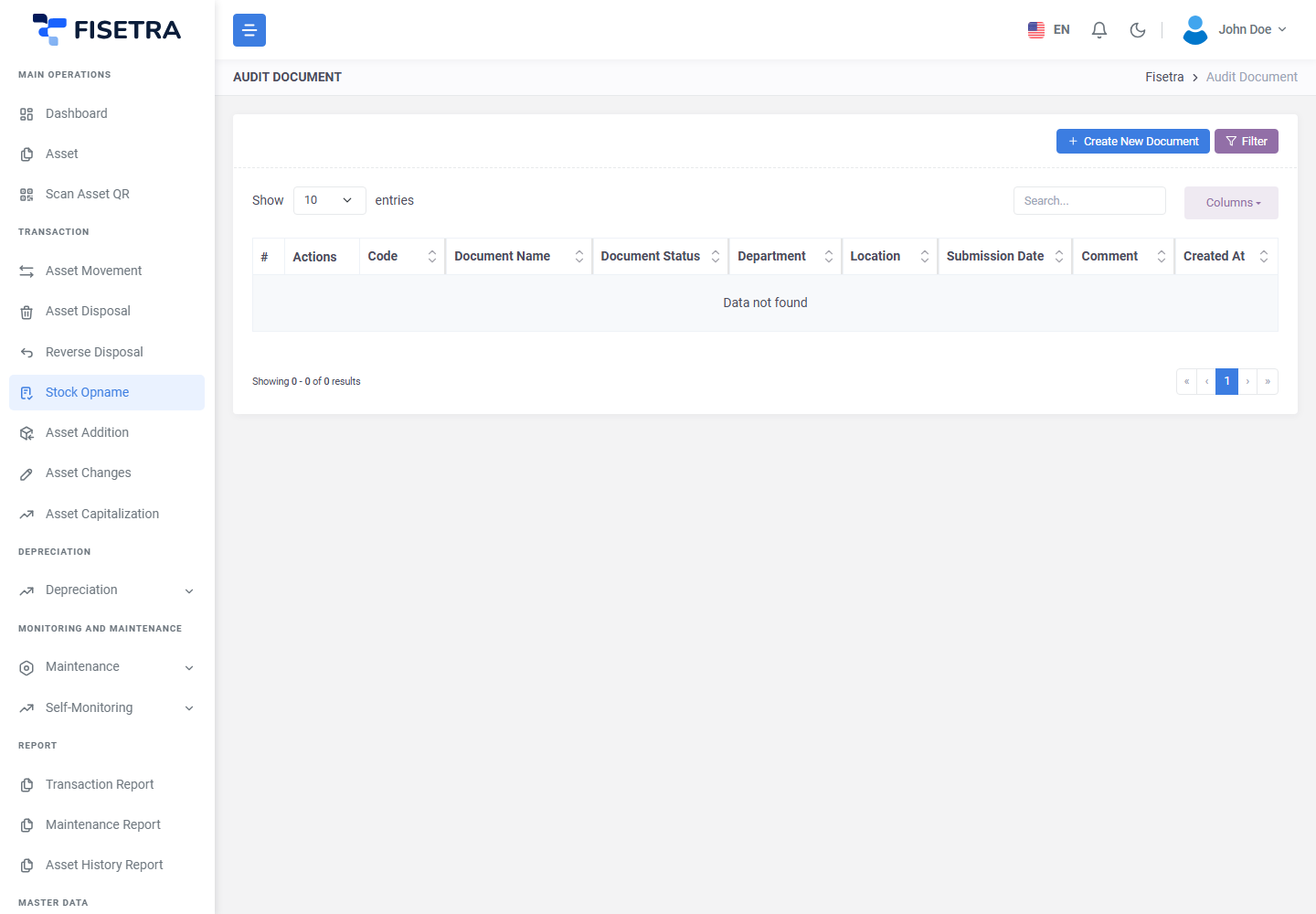
The whole flow
- Create the count and set its scope
- Connect devices and upload the field results
- Start review and close device access
- Reconcile every unscanned asset
- Decide which results to process or ignore
- Process the results and finish their linked documents
- Complete Stock Opname
| Status | Meaning | Available next action |
|---|---|---|
IN-PROGRESS | Field counting is open | Start review, or Void with the required capability |
IN-REVIEW | Devices are closed; the creator reviews findings and follow-up | Resolve every result, then Complete |
COMPLETED | The count and all required follow-up are finished | Read the record |
VOID | Cancelled before review started | Read the record |
Stock Opname uses this lifecycle instead of the ordinary document submission flow. Document basics applies to its linked transaction documents.
WARNING
Assets in an active Stock Opname remain locked against unrelated transactions, including while follow-up documents await approval or revision. Process corrections through the count's linked documents. Completing the count releases the lock; Void is available only before review starts.
Create the document and set the scope
- Open Transaction → Stock Opname and select the create button.
- Fill Document Title, the date and the department/location scope.
- Save. Fisetra assigns a number and sets
IN-PROGRESS. - Check that the scope contains the assets you intend to count.
Use the narrowest accurate scope. An unnecessarily broad scope locks assets that are not part of the field work.
Allow devices to count
Enable device download and register the devices allowed to join. Devices can scan and upload only while the document is IN-PROGRESS and their access is active.
Finish uploading every device's results before starting review. Starting review disables all connected devices and closes further download and upload access.
Start review
- Open the document as its creator.
- Choose Start review.
- Check the warning about unscanned assets and confirm with Yes.
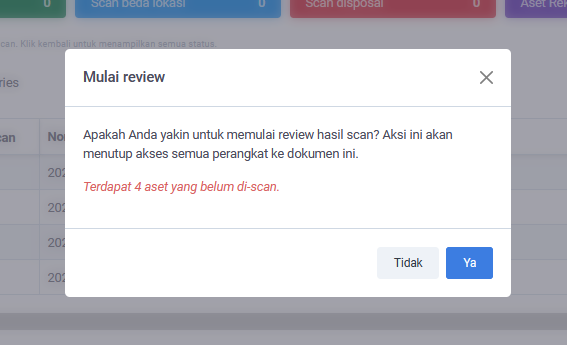
The status becomes IN-REVIEW. Fisetra preserves the original scan evidence and the asset values at the start of review. If an old temporary scan has no registered asset, or a scanned asset is unavailable, resolve that issue before review can begin. Do not use this flow to create a new asset; use Asset addition.
Read the summary
The Summary tab combines the asset results. Open a result to see Before and After values, condition, notes, photos and accessories.
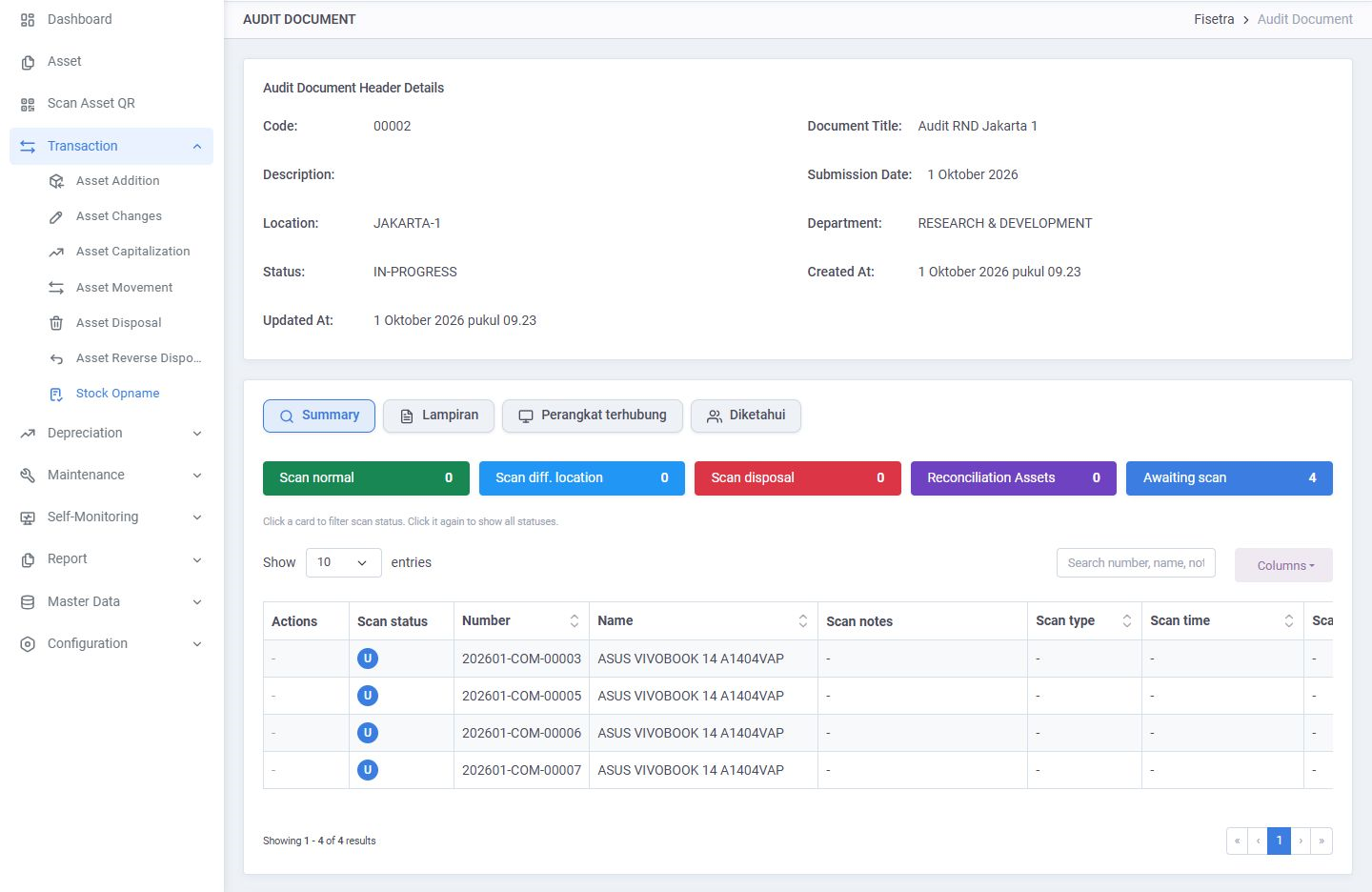
This example is still IN-PROGRESS; review controls appear after review starts.
| Scan status | Meaning |
|---|---|
| Scan normal | Found without a location/disposal discrepancy |
| Scan diff. location | Found at a different location |
| Scan disposal | A disposed asset was found |
| Awaiting scan | Expected in the scope but not scanned |
A result can have more than one scan status. Click a scan-status card to filter it; click again or use Show all statuses to clear the filter.
During review, Review progress also filters by reconciliation required, not decided, selected for processing, awaiting documents, follow-up required, finished or ignored. This combines with the scan-status filter and search. Progress counts cover the whole document, even when the table is filtered.
Filtering changes the rows you see; it does not change saved decisions.
Reconcile unscanned assets
Investigate each missing result before deciding that an asset has been lost.
- In Summary, locate the unscanned assets.
- Select an individual reconciliation action, or tick unscanned rows and choose Reconcile.
- In Reconciliation Confirmation, choose Status, add a Comment, and supply Disposal Date if required.
- Confirm, then review the resulting record and decide its follow-up.
The select-all checkbox covers unscanned assets on the current page. Reconciliation checkboxes are separate from the Process decisions stored for review. The disposal date must meet the date restriction shown by the form.
Correct and decide results
Before follow-up documents are created, open a result to correct its review values. Enter Correction reason (required) and save. The original scan and correction history remain available; a correction resets the follow-up decision to Not decided.
Choose a Follow-up decision for each result:
| Decision | Result |
|---|---|
| Not decided | Review is still outstanding |
| Process | Include this result in the next processing run |
| Ignore | Record a required reason and take no asset-changing action for this result |
Mark results on this page: Process marks the eligible results currently visible. Decisions remain saved when you change pages or filters.
Process follow-up documents
- Choose Process marked results.
- Read the preview showing the number of asset results and documents.
- Confirm only when the proposed follow-up is correct.
- Open the linked documents to submit and track any required approvals.
Processing uses all saved Process decisions that have not yet generated documents, including results outside the current page or filter.
| Finding | Follow-up |
|---|---|
| Notes, photos, accessories, or an active condition change without movement | An asset-change document is created and automatically approved with history |
| Location changed | A movement document follows the normal submission/approval flow |
| Asset must be disposed | A disposal document follows the normal flow |
| Disposed asset found | A reverse-disposal document follows the normal flow |
| Movement and disposal are both needed | Approve movement before disposal |
| Disposed asset found at a different location | Approve reverse disposal before movement |
The linked documents preserve the connection to the count. Do not replace them with unrelated documents while the assets remain locked.
Revise a follow-up document
A rejected linked document does not reopen device access or release the asset lock.
- In Summary or the scan detail, use Revise follow-up document beside an eligible draft/rejected document.
- Update the offered values and enter a correction reason.
- Check the warning: the revision applies to every asset grouped in that document.
- Save, then open the linked document and submit or resubmit it.
Saving a revision does not approve it. Already approved documents and the original scan evidence are preserved. Generated follow-up documents cannot be independently deleted or voided; use the linked revision flow.
Complete or void the count
Complete becomes available to the creator only when every unscanned asset is reconciled, every result is finished or ignored, and all required linked documents have been approved and applied. Confirm to set COMPLETED and release the asset lock.
To cancel before review, the creator needs the void capability and an IN-PROGRESS document. Void is unavailable once review has started.
Common problems
| Problem | What to do |
|---|---|
| A device can no longer upload | Check whether review has started or device access was disabled |
| Start review is refused | Resolve temporary/unregistered scans or unavailable registered assets |
| Complete is disabled | Check reconciliation, undecided results, and linked documents awaiting approval or revision |
| Results disappear when filtering | Clear both the scan-status and review-progress filters, then check search |
| Processing includes more results than the visible page | Review decisions are saved across pages and filters |
| A linked document was rejected | Revise it with a reason and resubmit through its document page |
| An unrelated transaction remains blocked | Finish the active count's linked follow-up; the lock lasts until completion |