
Managing assets
Asset is the register: every asset your company owns and that you are allowed to see.
This chapter covers browsing and viewing assets. Changing an asset is done through documents, not by editing the register directly — see Document basics for why, and Asset changes for how.
The asset list
The list uses the standard controls from Navigating Fisetra: search, Filter, Columns, Export and pagination.
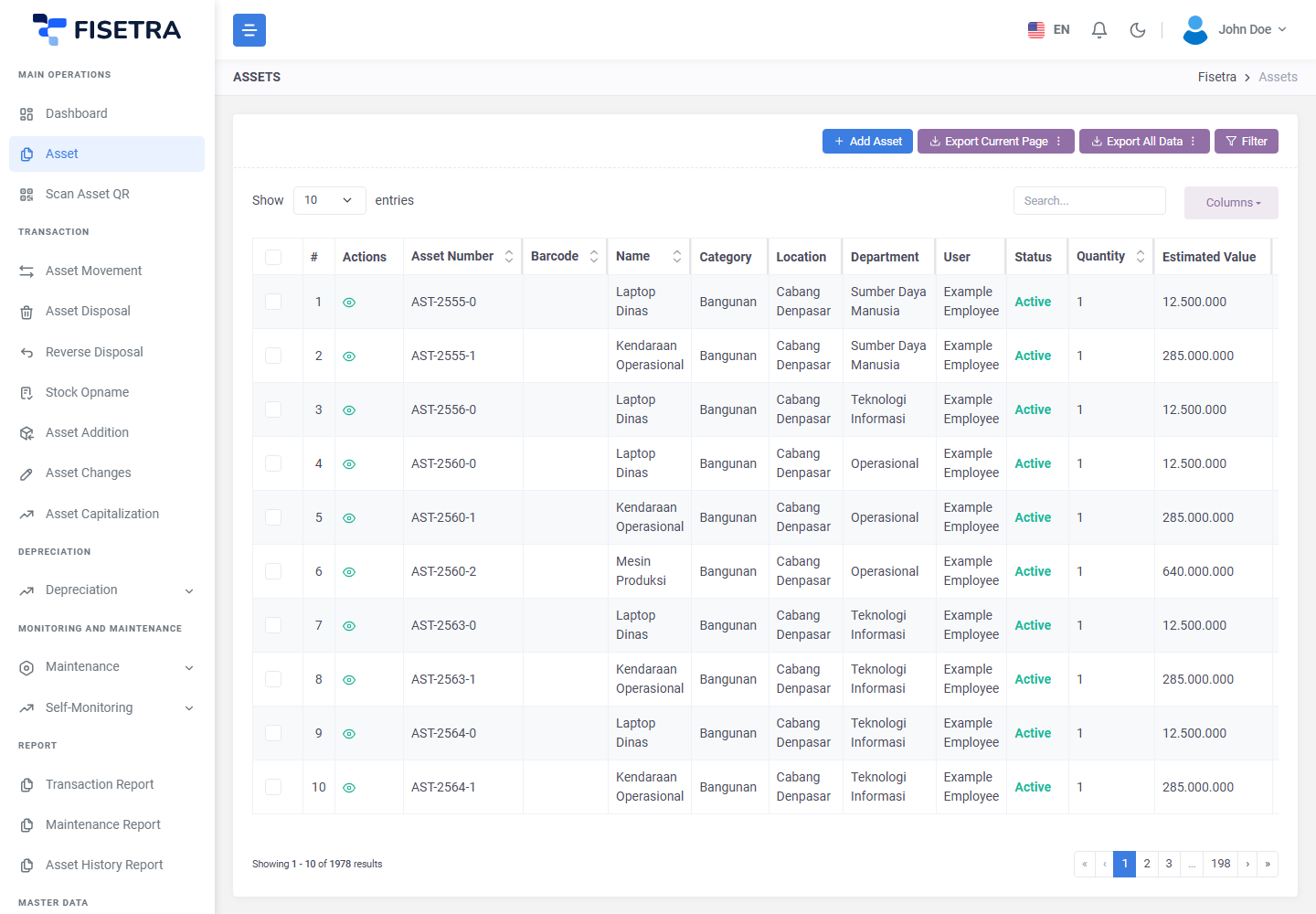
Because the asset table is wide, Columns is more useful here than anywhere else. Set it to the fields you actually work with; the choice sticks.
Filter offers Date Range Filters for purchase and depreciation dates and Value Range Filters for amounts, alongside category, location, department and status.
INFO
The list shows only assets within your visibility. If it looks short or empty, that is usually your assignment rather than missing data — see Users and access.
Asset identifiers
Each asset carries more than one identifier, and they are not interchangeable.
| Identifier | Where it comes from |
|---|---|
| System ID | Generated by Fisetra when the asset is created |
| Company code | Generated from your company's asset numbering configuration |
| Barcode | The code on the physical label, used when scanning |
| Serial Number | The manufacturer's number |
Numbering formats are set in Company configuration.
The detail tabs
Opening an asset shows tabs across the top. Each tab has its own view capability, so you may see fewer than are listed here — and Fisetra opens the first tab you are allowed to see.
| Tab | What it holds |
|---|---|
| General | Name, description, status, category, and the responsible person |
| Location | Where the asset is, and its department |
| Purchase | Purchase date, acquisition value, currency, useful life, residual value |
| Depreciation | Depreciation settings for this asset and its calculated values |
| Capitalize | Capitalization applied to this asset |
| Custom Field | Your company's own extra fields |
| Attachment | Files attached to the asset |
| Accessories | Components that belong with the asset |
| Child | Assets registered underneath this one |
| History | Every recorded change |
| Maintenance | Maintenance scheduled and performed on this asset |
General, Location and Purchase
The core record. Purchase holds the figures depreciation is calculated from — acquisition value, purchase date, the date depreciation starts, useful life and residual value. The depreciation start date is deliberately separate from the purchase date, because an asset is often bought before it is put into service.
See Depreciation.
Custom Field
Fields your company added for information Fisetra does not have out of the box — a contract reference, an insurance policy, a cost centre. Administrators define them in Company configuration, and they can be charted on the dashboard.
Attachment
Files kept with the asset: invoices, warranty documents, photographs. Images get thumbnails automatically.
Attachments on the asset are the asset's permanent records. Attachments on a document are evidence for that particular transaction. They are separate, and both are kept.
Accessories
Components that belong with the asset but are not tracked as separate assets — the charger with a laptop, the toolkit with a machine. Use accessories when the part has no independent life, and a child asset when it does.
Child
Assets registered beneath this one, for genuine parent/child relationships: a vehicle and its trailer, a server and its expansion units. Each child is a full asset with its own record, history and depreciation.
History
Every change to the asset, with what changed, when and through which document. This is the audit trail — it is written by the system and cannot be edited.
Because changes go through documents, history tells you not just what changed but who approved it. It covers additions, changes, movements, disposals, reverse disposals and stock opname findings.
For history across many assets at once, use the Asset History Report in Reports.
Maintenance
Maintenance recorded against this asset, scheduled and completed. See Maintenance.
Bulk actions
Selecting several assets in the list offers actions that apply to all of them at once: movement, disposal and reverse disposal. Each opens a form, then a confirmation.
These create the same documents as the equivalent menu entries and follow the same approval route. They are a shortcut into the document, not a way around approval.
See Asset movement, Asset disposal and Reverse disposal.
Export labels
Select assets and choose Export Label, pick a saved preset, then export the PDF. For design, QR values and printing checks, see Asset labels.
Creating an asset
A single asset can be created directly from the asset list with the add button. Assets are normally recorded through an Asset Addition document instead, especially in bulk — see Asset addition.
Scanning to find an asset
Scan Asset QR opens the camera and jumps straight to the matching asset. Handy when you are standing in front of the thing and want its record.
Scanning for a stock count is a different flow — see Stock Opname.
Disposed assets
A disposed asset is not deleted. It is marked as disposed, disappears from the active list, and keeps its full history. It can be brought back with a reverse disposal, which is why disposal is safe to use for anything genuinely out of service.
Common problems
| Problem | Why | What to do |
|---|---|---|
| An asset you expect is missing | Outside your visibility, or disposed | Check your assignments; check the disposed filter |
| A tab is missing | Your role does not include that tab's view capability | Ask your administrator |
| Values cannot be edited on the detail page | Changes go through documents | Raise an Asset changes document |
| History shows no entries | The asset was created before history was recorded, or has never changed | Expected — new assets have short histories |
| A depreciation figure looks wrong | Purchase values or the depreciation start date are wrong, or no template is assigned | Check the Purchase tab, then Depreciation |