
Asset disposal
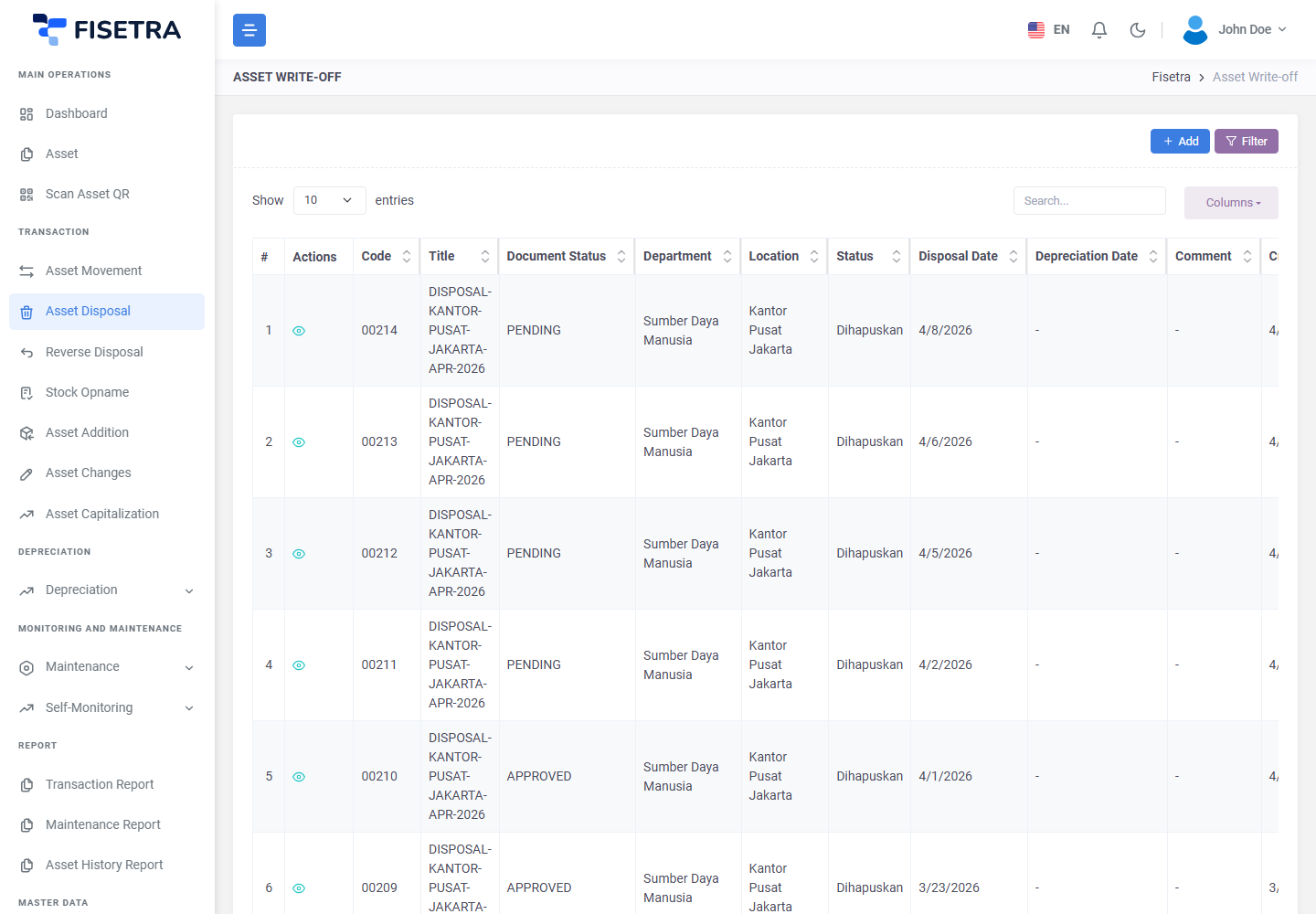
Transaction → Asset Disposal takes assets out of active service: sold, scrapped, lost, or simply worn out.
Disposal does not delete anything. The asset is marked as disposed, drops out of the active register and stops depreciating, but its record and full history remain — and it can be brought back with a reverse disposal if the decision was wrong or the missing item turns up.
The lifecycle, submitting, fixing and voiding are in Document basics.
Create the document
- Open Transaction → Asset Disposal and select the create button.
- Fill in the header:
- The title, and the department, location and category context
- The disposal date — when the asset actually left service
- The last depreciation date — the point depreciation should stop
- The status the assets should carry once disposed
- Save. The number is generated and the status is
DRAFT.
The two dates
These are the fields most worth getting right, and they are easy to skim past.
The disposal date is when the asset left service. The last depreciation date decides how much depreciation is charged before it stops. Setting it carelessly either charges depreciation for months the asset was already gone, or stops it early — both distort the book value at the moment of disposal.
If you are unsure, ask whoever owns the accounts. See Depreciation.
Add the assets
- On the Asset List tab, add assets one at a time or use the bulk option.
- Only active assets appear. An already-disposed asset cannot be disposed again.
- Remove any line added by mistake while the document is still
DRAFT.
Attachments and Carbon Copy
Disposal usually needs evidence — a disposal authorisation, a sale receipt, photographs of a damaged item, a police report for something lost. Attach it on the Attachment tab. Your administrator may have made attachments mandatory for disposals.
Add finance, or anyone who needs to know, on Carbon Copy.
Submit and approve
Select Document Confirmation. The document becomes PENDING and approvers are notified.
On approval:
- Each asset is marked as disposed
- Each asset's depreciation date is updated from the header, so depreciation stops
- The assets leave the active asset list
- Each gets a history entry pointing at this document
If the document is voided or rejected, nothing happens to the assets — they stay active. A voided disposal has no effect at all.
If it is rejected it returns to you as a DRAFT; fix it and use Confirm Fix.
After disposal
| Question | Answer |
|---|---|
| Is the asset deleted? | No. It is marked disposed and keeps its record and history |
| Can I still find it? | Yes — filter the asset list for disposed assets |
| Does it still depreciate? | No. Depreciation stops at the last depreciation date |
| Can it come back? | Yes — see Reverse disposal |
| Can it be moved or changed? | No, not while disposed |
Disposing from the asset list
Selecting assets in Asset and choosing the disposal bulk action creates the same document with those assets pre-filled, and follows the same approval route. See Managing assets.
Common problems
| Problem | Why | What to do |
|---|---|---|
| An asset is not in the available list | Already disposed, outside your visibility, or locked by an active Stock Opname | Check its status and your assignments |
| Book value after disposal looks wrong | The last depreciation date was set incorrectly | Correct it while the document is still DRAFT; if approved, use a reverse disposal and redo it |
| Cannot submit — attachment required | Your company requires evidence for disposals | Attach the supporting document. See Company configuration |
| Disposed the wrong asset | It happens | Raise a reverse disposal |
| An unscanned asset needs disposal during Stock Opname | Reconciliation and follow-up are managed in the count | Reconcile it, choose Process and finish the linked disposal. See Stock Opname |