
Importing master data
Import Master Data handles bulk changes to the reference lists described in Master data. It does not create assets or login accounts.
Open a supported list under Master Data and choose the upload icon labelled Import Master Data. You need the corresponding create, update or delete capability for each action in the workbook.
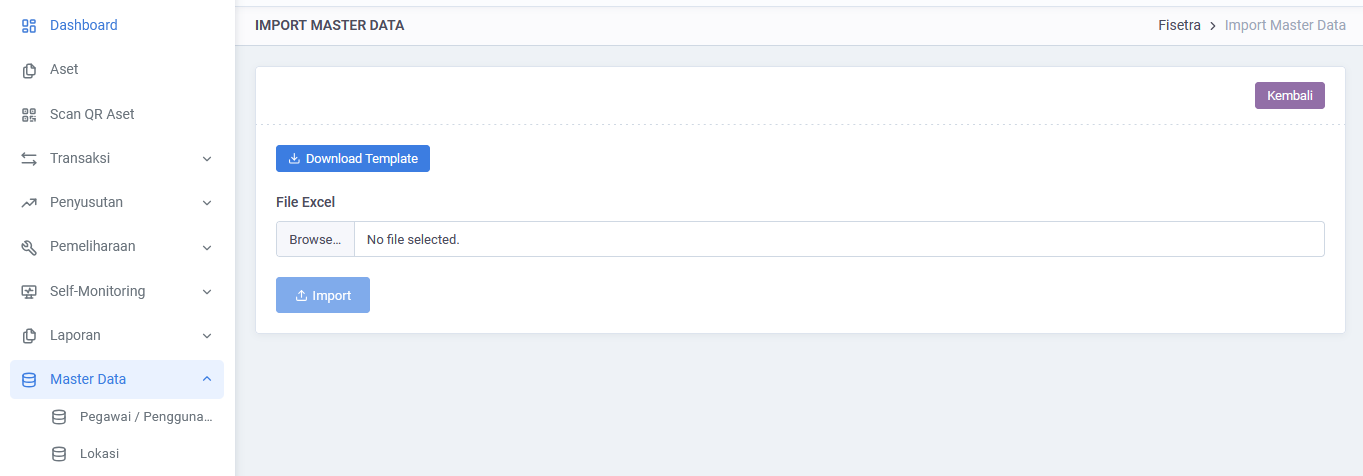
Prepare the workbook
- Choose Download Template.
- Keep the template's sheet names and column headers.
- Fill the relevant sheets. Sheets you leave out are ignored.
- Save as
.xlsxor.xls; the upload limit is 10 MB.
| Sheet | Data | Important columns |
|---|---|---|
Pengguna | Asset users | aksi, kode, nama, email, telepon, alamat |
Lokasi | Locations | aksi, kode, nama, kode_induk, deskripsi |
Departemen | Departments | aksi, kode, nama, deskripsi |
Kategori | Categories | aksi, kode, nama, kode_induk, deskripsi |
Status | Asset conditions | aksi, kode, nama, tipe, deskripsi |
Use add, update or delete in aksi. Updates and deletions require an existing kode. Do not repeat a code within a sheet. New rows require nama; asset users also require a valid, unique email. Status tipe must be active or inactive.
For locations and categories, create parents before children and put the parent's code in kode_induk. A record cannot be its own parent or form a circular hierarchy.
WARNING
The workbook can update and delete existing master data. Review every aksi and kode before importing. A record in use by an asset cannot be deleted.
Upload and read the result
- Choose your workbook in File Excel.
- Choose Import.
- Keep the page open while the status progresses.
- Check Total Row, Success, Error, and the per-sheet action summary.
| Status | Meaning |
|---|---|
queued | Waiting to start |
processing | Checking and applying the workbook |
completed | Import finished |
completed_with_errors | Validation found errors; no workbook changes were applied |
failed | The import could not finish; inspect the error information |
The workbook is validated before changes are applied. Fix the workbook as a whole when validation fails; do not assume that its other rows were already imported.
Fix errors
Detail Error identifies the Sheet, Row, Action, Column, Value and Message. Filter these columns to investigate the displayed errors.
- Read the indicated row and column in the original workbook.
- Correct missing values, duplicate codes, invalid parents or permission issues.
- Check every sheet again and upload the corrected workbook.
The displayed error list is limited; the Error total may exceed the number of errors currently shown. Start with the displayed errors and check the next import result.
Common problems
| Problem | What to do |
|---|---|
| Import stays queued | Ask your administrator to check why processing has not started |
| Permission error on an action | Request the matching create, update or delete capability |
| A parent code is not found | Create or place the parent before the child and check its code |
| A deletion is refused | Check asset use, linked users and child records |
| Currency is missing from the workbook | Manage currency separately in its master list |