
Navigating Fisetra
Fisetra reuses the same handful of interface patterns everywhere. Learn them once here and every later chapter gets shorter.
The dashboard
Signing in lands you on the Dashboard. It summarises the assets you are allowed to see: headline totals, movement over time, a status breakdown, distribution across your organisation, items needing follow-up, book value by location and department, and recent activity.
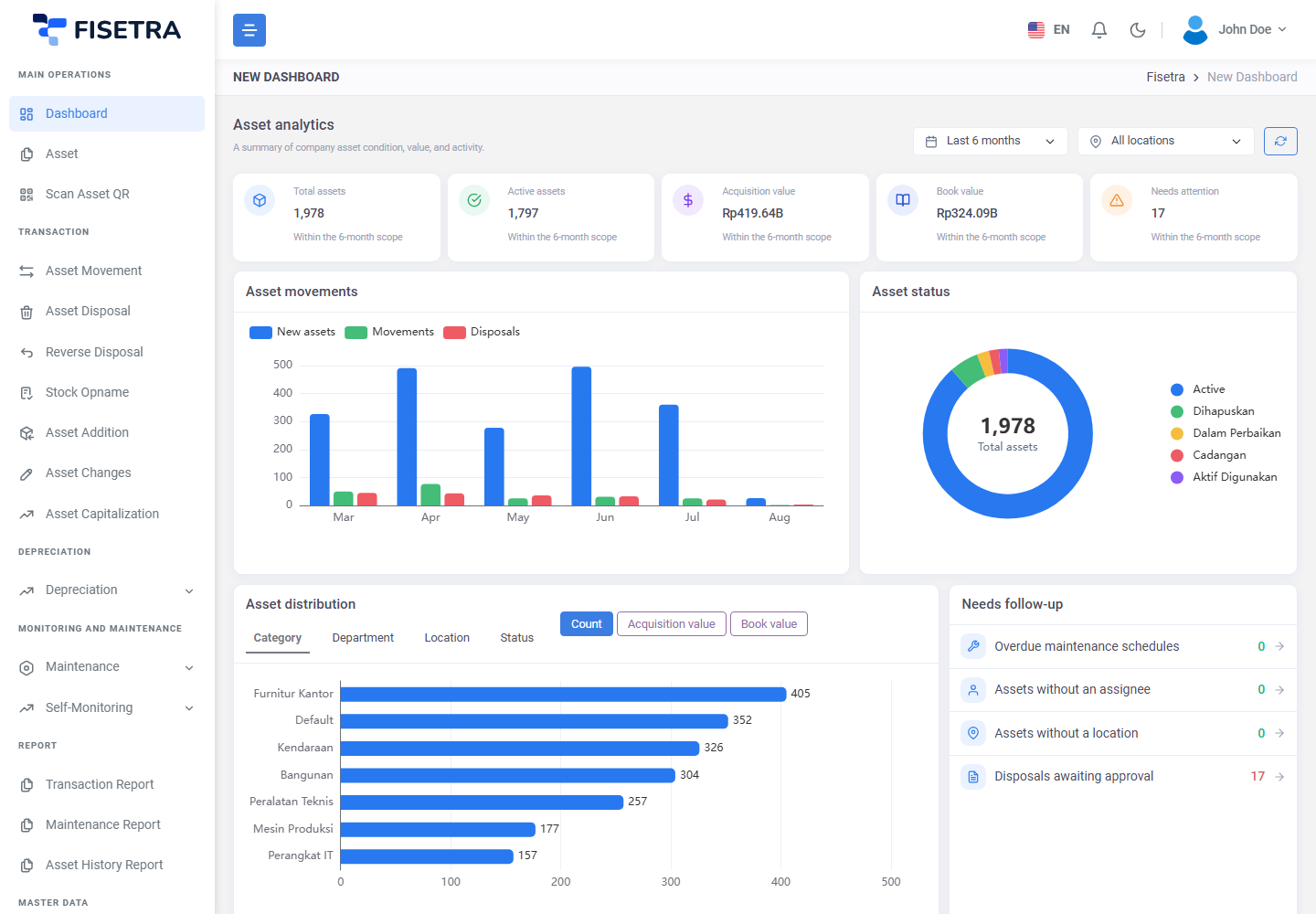
Every figure respects your data visibility. Two people can open the same dashboard and see different numbers, and both are correct — see Users and access.
If the dashboard is empty but you know assets exist, you have probably not been assigned any location, department or category yet. See Troubleshooting.
The menu
The sidebar on the left is grouped by what you are trying to do.
| Group | Contains |
|---|---|
| Dashboard, Asset, Scan Asset QR | Direct entries at the top of the sidebar |
| Transaction | Asset Movement, Asset Disposal, Asset Reverse Disposal, Stock Opname, Asset Addition, Asset Changes, Asset Capitalization |
| Depreciation | Depreciation Report, Depreciation Template, Depreciation Settings |
| Maintenance | Maintenance List and its master lists |
| Self-Monitoring | Schedule List and its master lists |
| Report | Transaction Report, Maintenance Report, Asset History Report |
| Master Data | Status, Department, Category, Location, Employee / Asset User, Currency |
| Configuration | Company, Approval, User Management, Asset Label Configuration, Email Template, Custom Field Menu, Running Number, Regulation Information |
The menu only shows what your role allows. A missing entry is a permission, not a missing feature. Groups with a chevron expand to reveal their entries.
Use the collapse control at the top left to narrow the sidebar to icons when you need more width for a wide table.
The top bar
On the right of the top bar, in order:
| Control | What it does |
|---|---|
| Language | Switches the interface between English and Bahasa Indonesia |
| Notification bell | Recent notifications, with a badge for unread ones |
| Theme | Switches between light and dark appearance |
| User menu | Your profile, company switching and sign out |
Notifications
The bell shows the most recent items. Select View all to open the full inbox, where you can mark items read individually or all at once.
Notifications cover approval requests and decisions, company invitations, maintenance, Self-Monitoring and system messages. Selecting one takes you to the record it refers to.
The user menu
| Entry | What it does |
|---|---|
| Profile | Your own details and password |
| Switch Company | Jump to another company you belong to. Up to five are listed, with a tick beside the current one |
| View All Companies | The full list, if you belong to more than five |
| Log Out | Sign out |
Working with lists
Every list screen in Fisetra behaves the same way.
| Control | What it does |
|---|---|
| Search | Free-text search across the list |
| Filter | Opens a panel of field-specific filters — dates, ranges, statuses, categories |
| Columns | Choose which columns are visible |
| Export Current Page | Exports only the rows currently displayed |
| Export All Data | Exports everything matching your filters, not just this page |
| Pagination | Page size and navigation at the bottom |
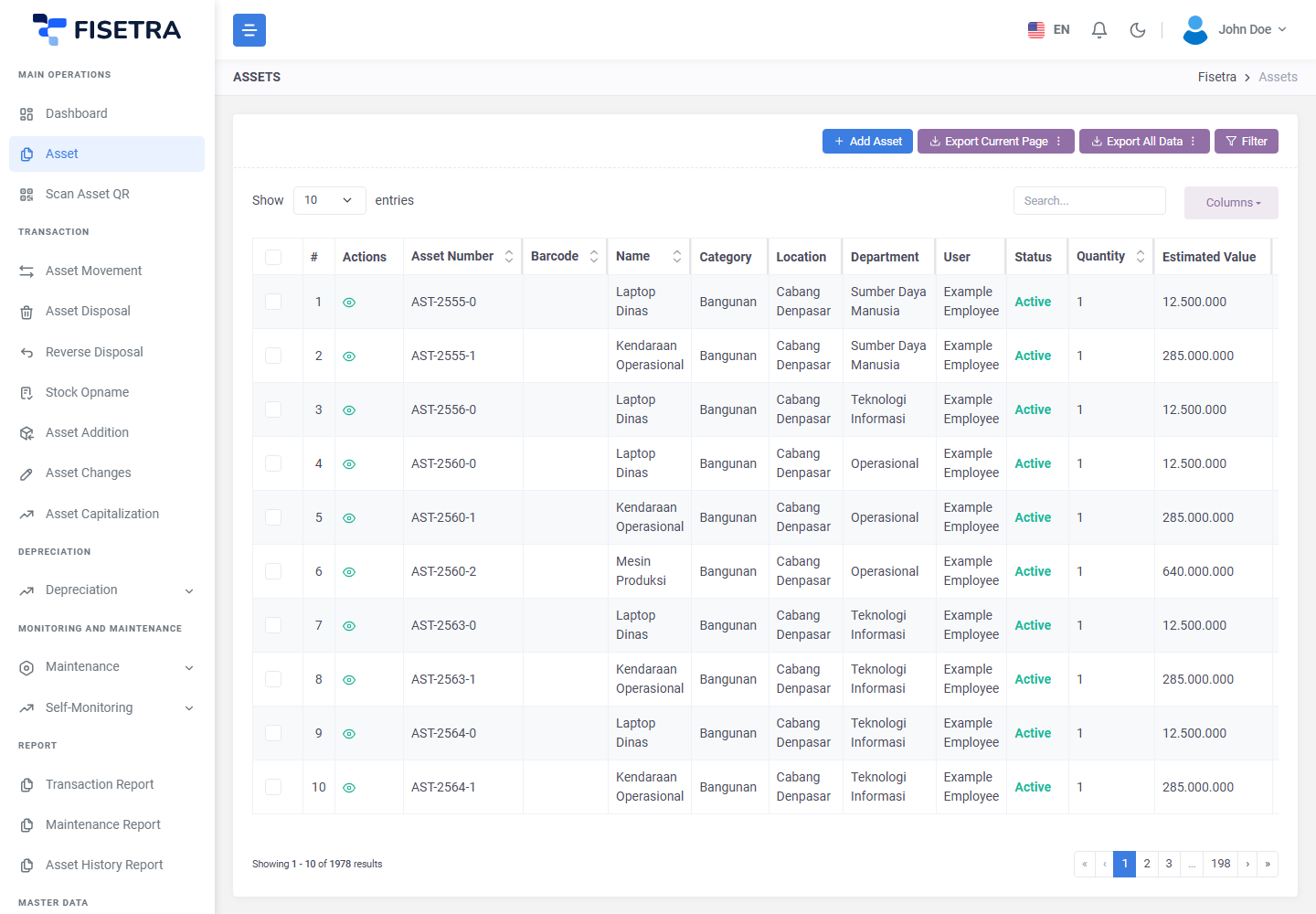
Filters and search combine, so an empty result usually means the filters are narrower than you intended. Reset them before concluding the data is missing.
Exports
Choose deliberately between the two export buttons. Export Current Page gives you the ten or so rows on screen; Export All Data gives you everything the filters match, which may be thousands of rows. Picking the wrong one is the most common reason an export "is missing data".
Exports are prepared in the background rather than downloaded instantly, so a large export does not tie up your browser. Start it, keep working, and collect the file when it is ready.
Exported files are removed automatically after 24 hours. Download anything you need to keep.
Date and value ranges
Filter panels group range filters together — Date Range Filters for dates and Value Range Filters for amounts. Both ends are optional: fill only the start date for "from this date onwards".
Your profile
User menu → Profile has two tabs: your personal details and avatar, and Change Password.
Your name and avatar are shared across every company you belong to. Your role and your asset visibility are not — those are set per company.
Pages that are not in the menu
Some screens are reached from the top bar rather than the sidebar:
| Screen | How to reach it |
|---|---|
| Notification inbox | Bell → View all |
| My Invitations | User menu |
| My Companies | User menu → View All Companies |
| Profile | User menu → Profile |
Scanning a QR code
Scan Asset QR opens your camera and takes you straight to an asset by scanning its label. It needs camera permission in the browser, and a camera.
This is for looking an asset up quickly. Scanning for a stock count is a different flow — see Stock Opname.
Language
The language control changes the whole interface, including menu names and status labels. This guide is available in both languages too — use the language switch at the top of any page.
Some values are your own data — the names of your categories, locations and departments — so they appear exactly as you typed them, in whichever language you typed them.