
Asset changes
Transaction → Asset Changes updates assets that are already registered. A typo in a name, a corrected purchase value, a new custom field value, a replaced photograph — anything that is not a physical move, a disposal or a capitalization.
Changes go through a document rather than being typed straight onto the asset, so every correction is approved and recorded. Asset values are financial records, and a silent edit would leave no trace of who changed what.
The lifecycle, submitting, fixing and voiding are in Document basics.
When to use a different document
| You want to | Use |
|---|---|
| Change location, department or responsible person | Asset movement |
| Take an asset out of service | Asset disposal |
| Add cost to an asset's book value | Asset capitalization |
| Correct anything else | Asset Changes — this chapter |
The distinction between a change and a movement is worth remembering: correcting a location that was recorded wrongly is a change, but recording that the asset has physically moved is a movement. Both end with a different location on the asset; only one of them means the asset went anywhere.
What can be changed
| Type | Covers |
|---|---|
| General | Name, description, status, responsible person |
| Custom Field | Your company's own extra fields |
| Location | The recorded location |
| Purchase | Acquisition value, purchase date, depreciation start date, useful life |
| Image | The asset photograph |
| Attachment | Adding or removing asset attachments |
| Accessories | Adding or removing accessories |
One document can carry several assets and several change types.
WARNING
Changing Purchase values changes what depreciation is calculated from. If the asset has already been depreciated, review it afterwards — see Depreciation.
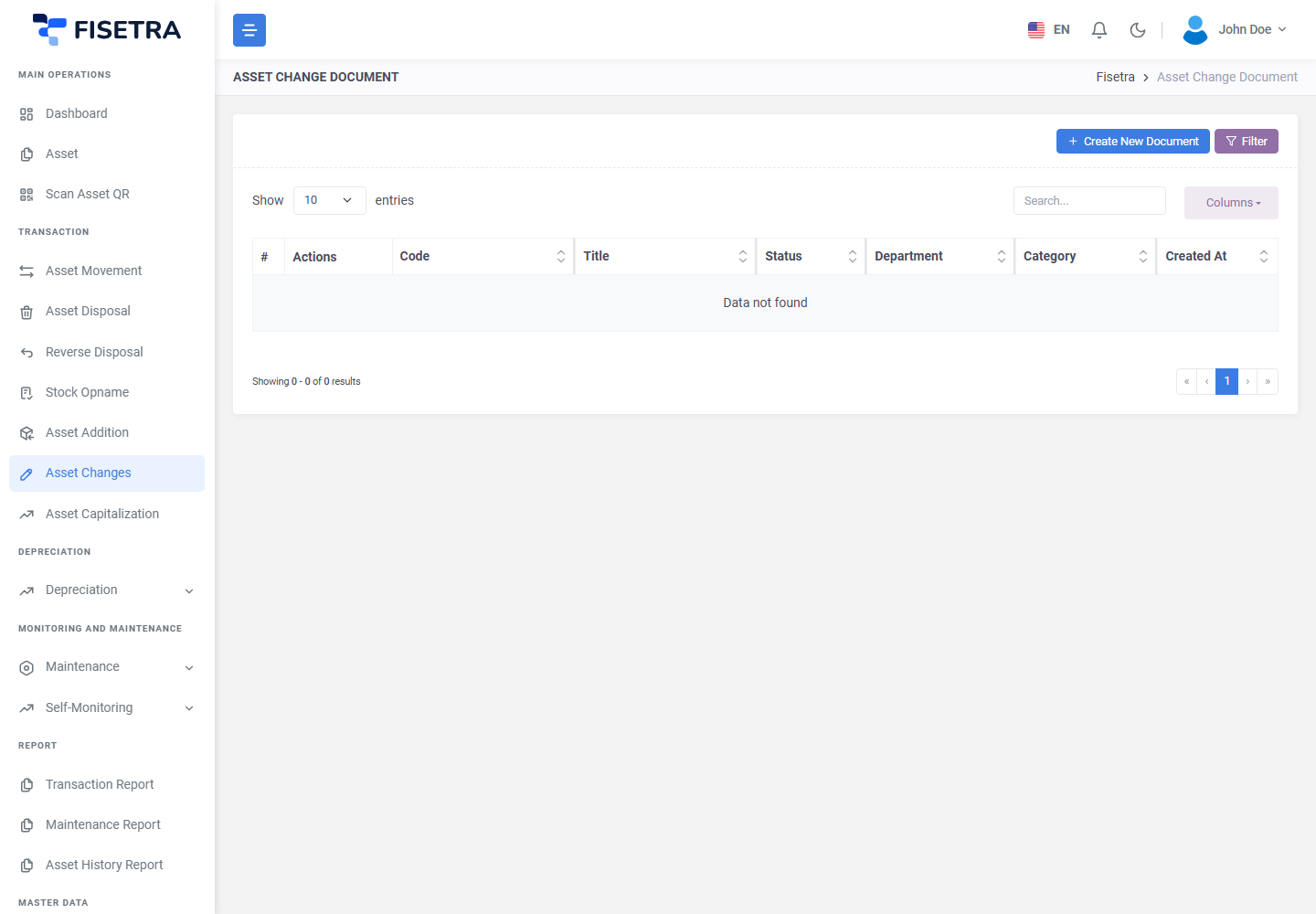
Create the document
- Open Transaction → Asset Changes and select the create button.
- Fill in the header — its title and the department and category context.
- Save. The number is generated and the status is
DRAFT.
Record the changes
- On the Asset List tab, add the assets you want to change.
- For each asset, choose the change type and enter the new values.
- Fisetra keeps the existing value alongside the new one, so approvers can see exactly what is being proposed.
- Repeat for each asset.
Showing both values is what makes the approval meaningful — an approver seeing only the new value has no way to judge whether the change is reasonable.
Attachments and Carbon Copy
Attach whatever justifies the change — a corrected invoice, a valuation, an email authorising it — on the Attachment tab. Add anyone who needs to know on Carbon Copy.
Submit and approve
Select Document Confirmation. The document becomes PENDING and approvers are notified.
On approval the new values are written to each asset, and each asset gets a history entry recording the old value, the new value and this document. The old value is never lost — it stays visible on the asset's History tab.
If the document is rejected it returns to you as a DRAFT; fix it and use Confirm Fix.
Common problems
| Problem | Why | What to do |
|---|---|---|
| An asset cannot be added | It is disposed, or outside your visibility, or locked by an active Stock Opname | Check the asset's status and your assignments |
| A field is not offered | It belongs to a different change type, or to a different document type | Check the table above |
| A custom field is missing | It has not been defined for your company | See Company configuration |
| Depreciation looks wrong after approval | The basis changed | Review the asset in Depreciation |
| The change was approved but nothing looks different | The change was on a tab you are not looking at | Check the asset's History tab to see what was applied |