
Company configuration
Everything under Configuration shapes how Fisetra behaves for your company. Most of it is set once during setup and revisited rarely.
Users, roles and access rights are large enough to have their own chapter — see Users and access.
Each screen has its own capability, so you may see only part of this menu.
Asset Label Configuration
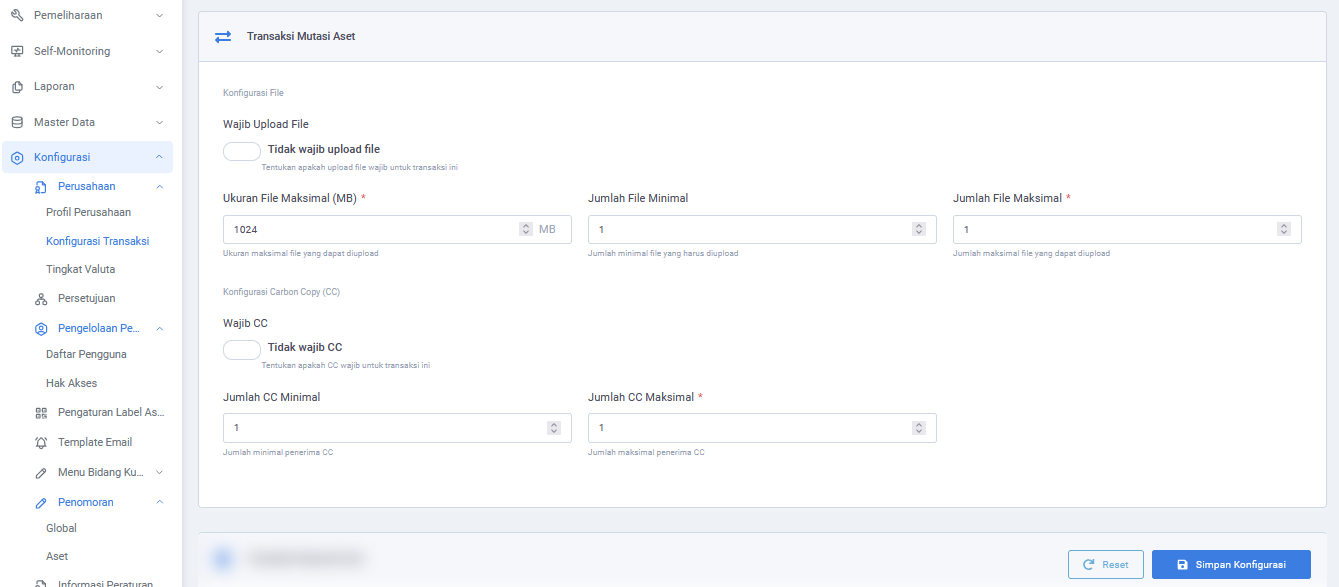
Configuration → Asset Label Configuration manages saved paper, grid and label layouts. It requires the label-designer capability. See Asset labels.
Company Profile
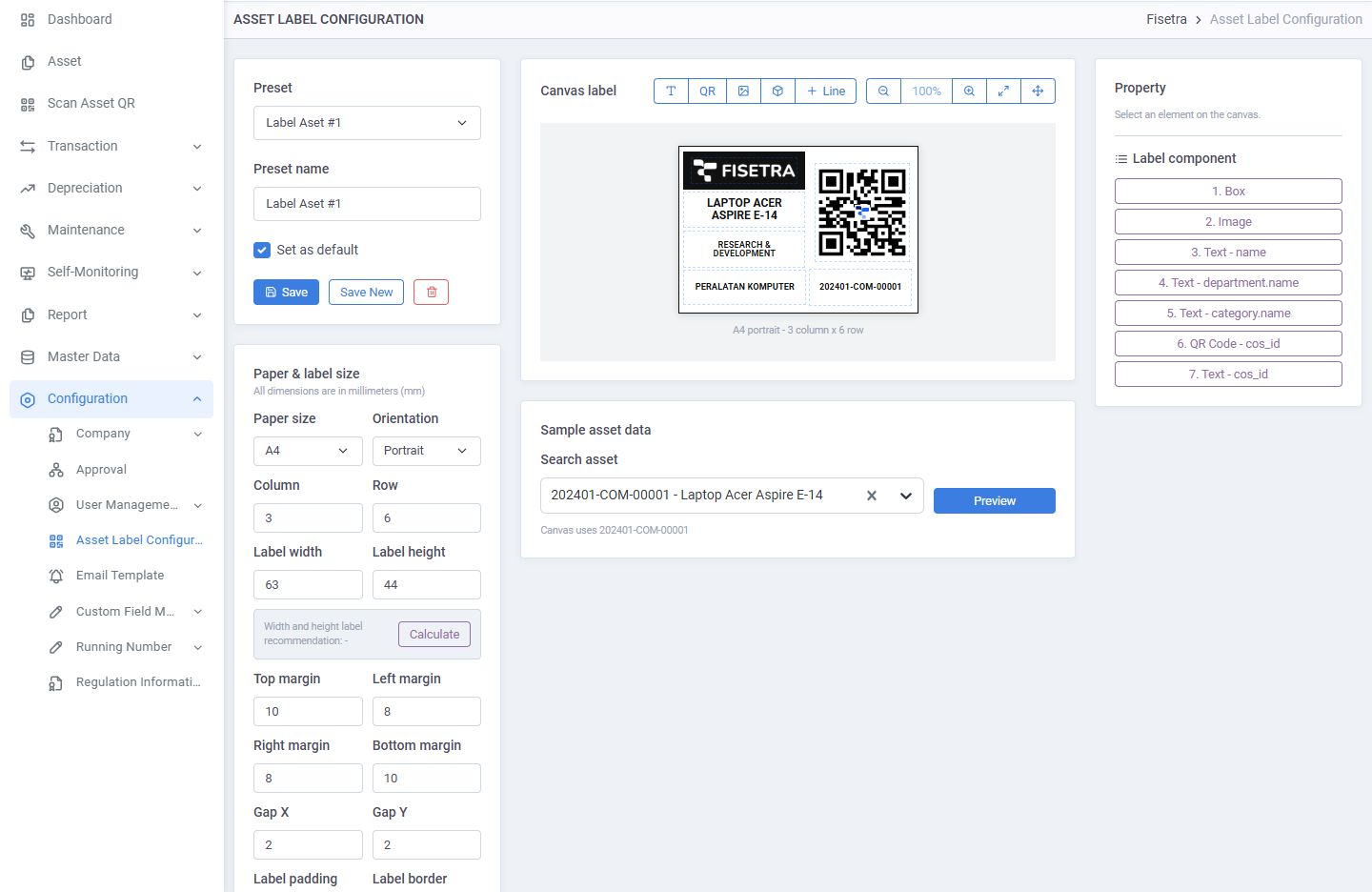
Configuration → Company → Company Profile holds your company's identity: its name, description and default currency, plus its branding.
You can upload three images:
| Image | Where it appears |
|---|---|
| Large logo | The expanded sidebar and sign-in screens |
| Small logo | The collapsed sidebar |
| Favicon | The browser tab |
These are per company, so people who work across several companies get a clear visual signal of where they are. Upload all three — a company with only a large logo looks unfinished the moment someone collapses the sidebar.
Transaction Configuration
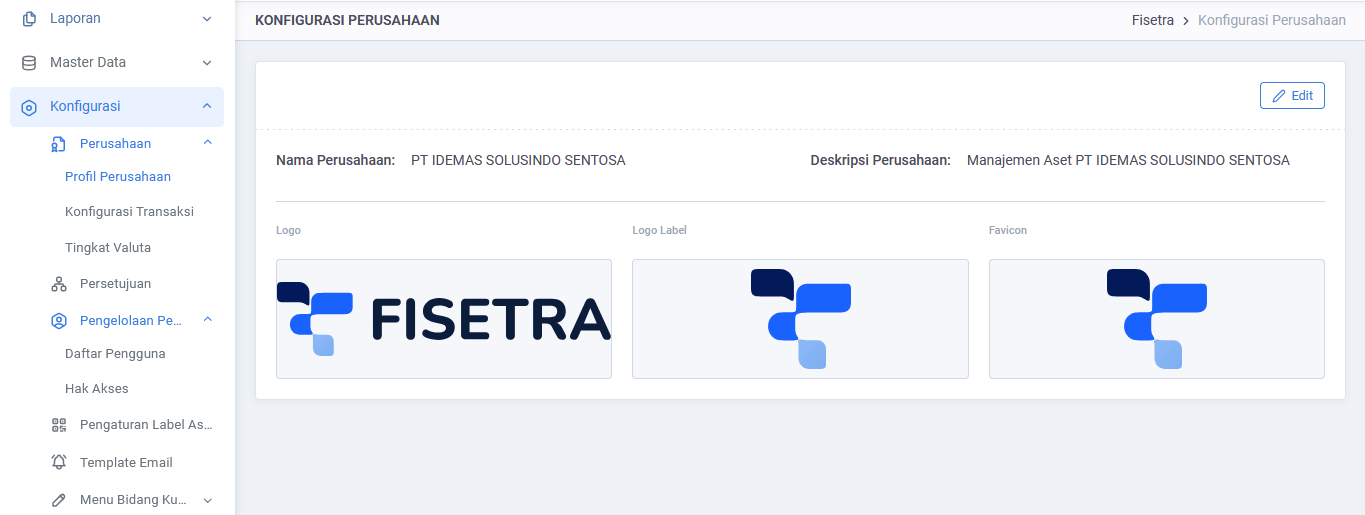
Configuration → Company → Transaction Configuration sets the rules each document type must satisfy before it can be submitted.
For each type — movement, disposal, reverse disposal, stock opname, capitalization and the rest — you can require:
| Rule | Effect |
|---|---|
| Attachment required | The document cannot be submitted without a file |
| Minimum and maximum files | How many attachments are allowed |
| Maximum file size | The largest file that can be uploaded, in MB |
| Carbon Copy required | The document cannot be submitted without recipients |
| Minimum and maximum Carbon Copy | How many recipients are allowed |
This is where you encode your evidence policy. Requiring an attachment on disposals means nobody can write an asset off without paperwork, which is usually the point.
Set these before people start raising documents. Tightening a rule later leaves existing drafts unable to submit until they are brought into line.
Running Number
Configuration → Running Number controls the codes Fisetra generates. There are two sections: Global for documents and master data, and Asset for asset codes.
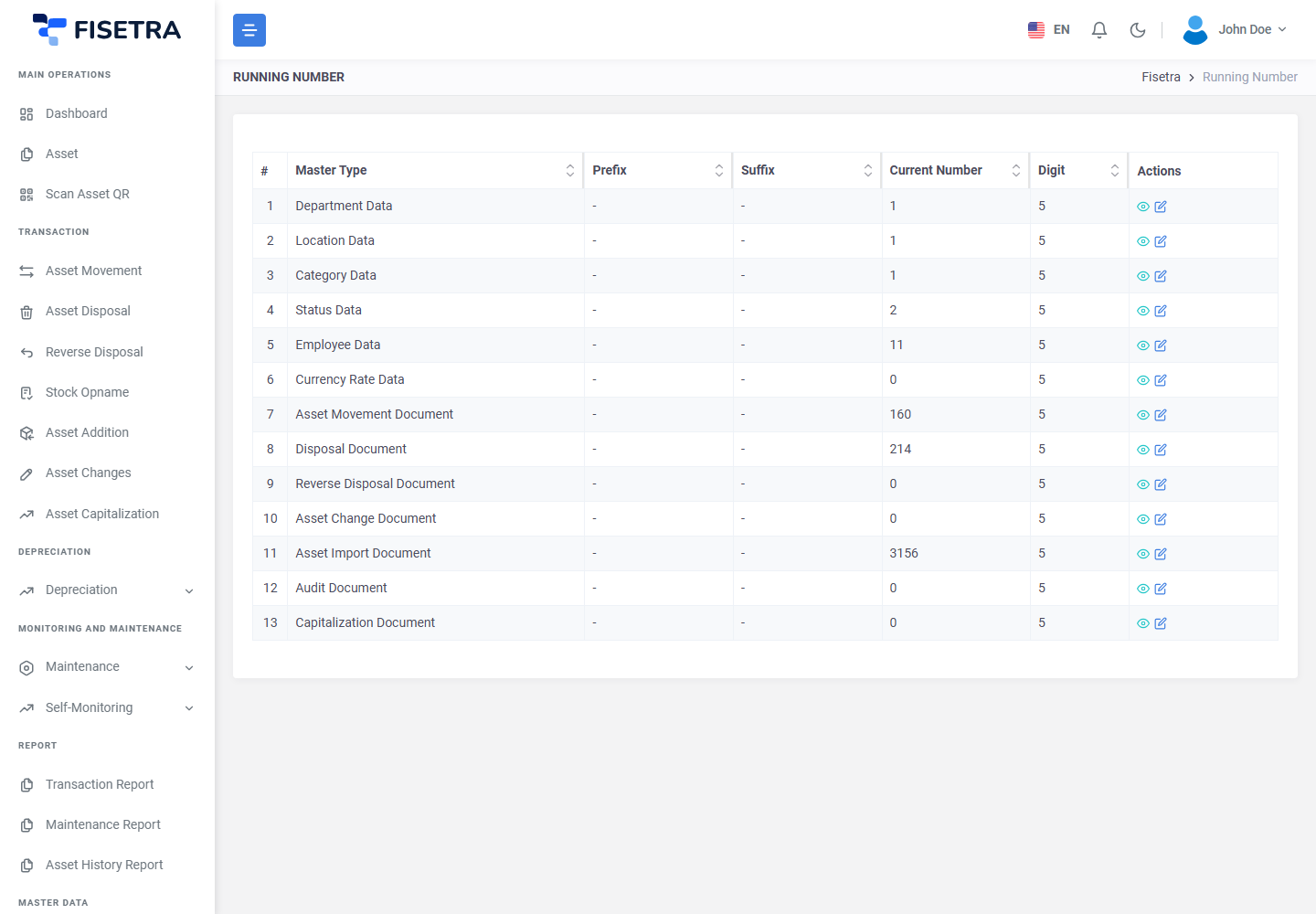
Each master type — asset addition documents, movement documents, departments, and so on — has its own configuration:
| Setting | Meaning |
|---|---|
| Prefix | Text placed before the number |
| Digit | How many digits the number is padded to with leading zeros |
| Suffix | Text placed after the number |
| Current Number | The counter's present value |
| Active | Whether this configuration is in use |
The result is simply prefix, then the zero-padded number, then suffix.
WARNING
No separator is added for you. A prefix of IA with 5 digits produces IA00001, not IA-00001. If you want the hyphen, make the prefix IA-.
Preview before saving. Numbering is visible on every document from then on, and changing it later leaves your records inconsistent — the old documents keep their old format.
Counters are per company. Two companies using Fisetra never share a sequence.
Email Template
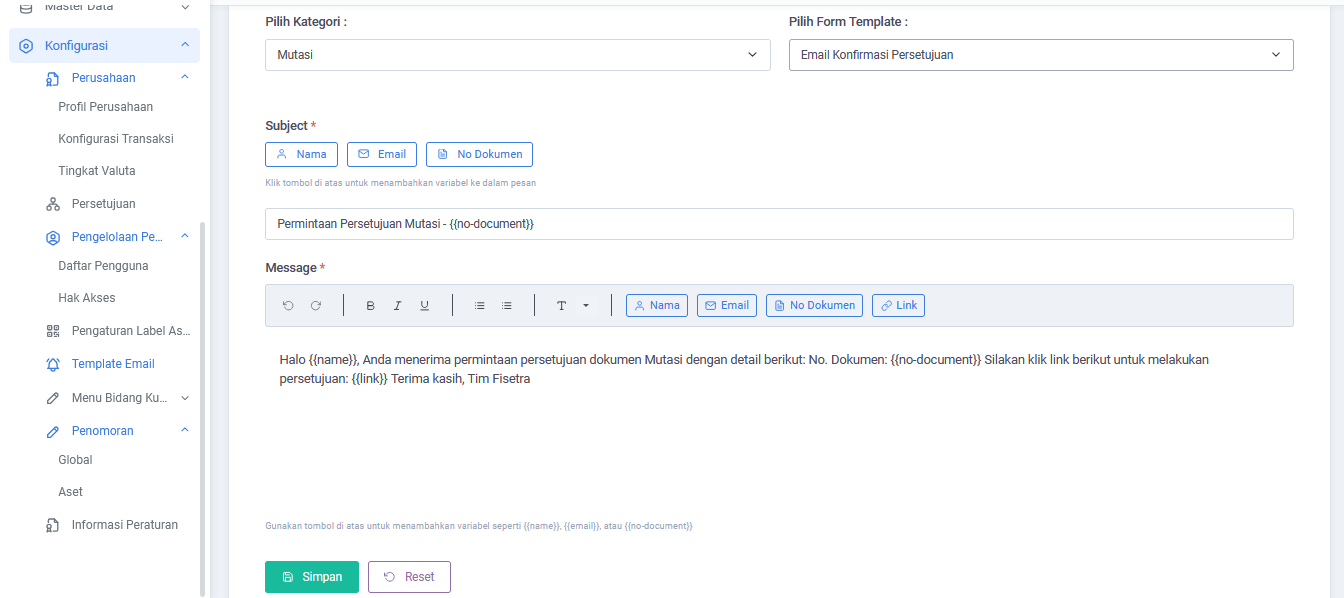
Configuration → Email Template customises the emails Fisetra sends: approval requests, approval and rejection notices, completion notices, user invitations, password resets, maintenance notifications and Self-Monitoring requests.
Each template has a subject, a body you edit with formatting, and a set of placeholders that are replaced with real values when the email is sent — the recipient's name, the document number, the confirmation link.
Keep the placeholders. Deleting the one that carries the confirmation link produces an email with no way to act on it, which is a support ticket waiting to happen. Send yourself a test after editing.
Templates are per company, so your emails carry your wording rather than a generic default.
 s
s
Custom Field
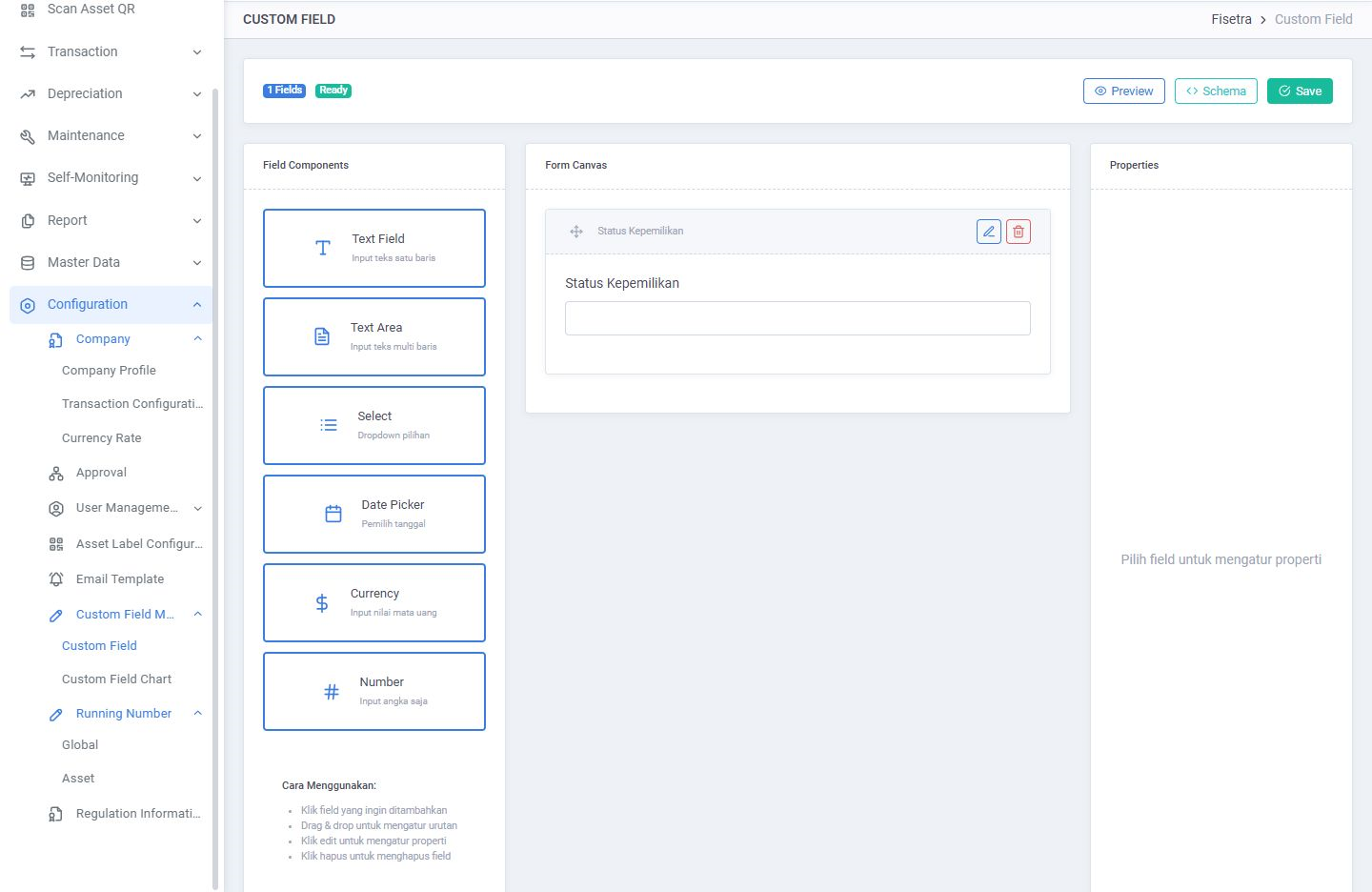
Configuration → Custom Field Menu → Custom Field adds fields Fisetra does not have out of the box — a cost centre, a contract reference, an insurance policy number.
Define them once and they appear on the Custom Field tab of every asset. See Managing assets.
Add fields you will actually fill in. An empty custom field on ten thousand assets is worse than not having it, because it looks like missing data rather than an unused option.
Custom Field Chart
Custom Field Chart turns a custom field into a dashboard chart, counting assets or summing values by that field. Useful for anything you would otherwise export to a spreadsheet to count — assets by cost centre, value by contract.
Currency Rate
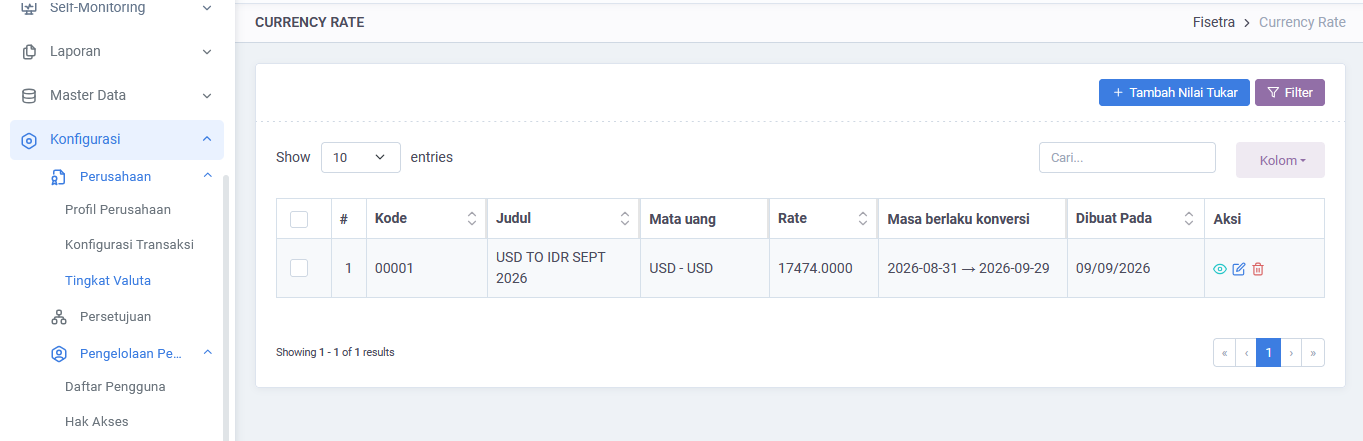
Configuration → Company → Currency Rate maintains exchange rates for the currencies in your master data.
Rates change; the currency list does not, which is why they are separate screens. Keep rates current if you record assets in more than one currency — reported values depend on them.
Regulation Information
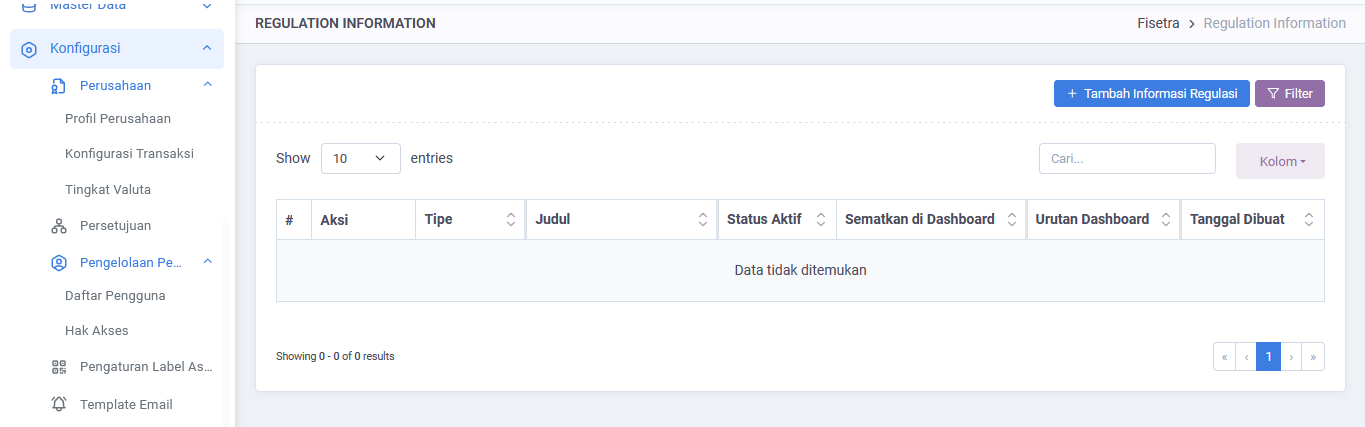
Configuration → Regulation Information stores reference material your users need: policy documents, regulatory notes, internal procedures. Entries are typed as either information or regulation, can carry attachments, and can be pinned to the dashboard.
Pin sparingly. A dashboard with a dozen pinned notices is one nobody reads.
Common problems
| Problem | Why | What to do |
|---|---|---|
| A configuration screen is missing | Your role does not include it | Ask your administrator |
| Documents cannot be submitted after a rule change | Existing drafts no longer satisfy the new rule | Add the attachments or recipients the rule now requires |
| Generated codes have no separator | None is added automatically | Put it at the end of the prefix, e.g. IA- |
| Numbering changed and old documents look different | Existing documents keep the number they were given | Expected — numbers are never rewritten |
| An email arrives with no link | A placeholder was removed from the template | Restore it and send a test |
| A custom field is not on assets | It was not saved, or you are looking at an asset tab you cannot view | Re-check the definition and your capabilities |
| Converted values look wrong | The exchange rate is out of date | Update Currency Rate |