
Master data
Master data is the set of reference lists everything else is built from. An asset does not store the word "Jakarta Office" — it points at a Location record. Change that record and every asset pointing at it follows.
Set these up before you record assets. Half an hour spent on a sensible category tree saves a great deal of re-filing later.
Each list is under Master Data in the sidebar, and each has its own view and edit capability, so a role can be allowed to read a list without changing it.
What each list is for
| List | Purpose | Shape |
|---|---|---|
| Status | The condition an asset is in — in use, under repair, in storage | Flat |
| Department | The organisational unit responsible for an asset | Flat |
| Category | What kind of thing the asset is | Tree |
| Location | Where the asset physically is | Tree |
| Employee / Asset User | The people assets are assigned to | Flat |
| Currency | The currencies asset values are recorded in | Flat |
How the lists behave
All six share the same screen: a searchable, filterable table with create, edit and delete actions, and the shared list controls described in Navigating Fisetra.
Two of them behave differently in ways worth knowing.
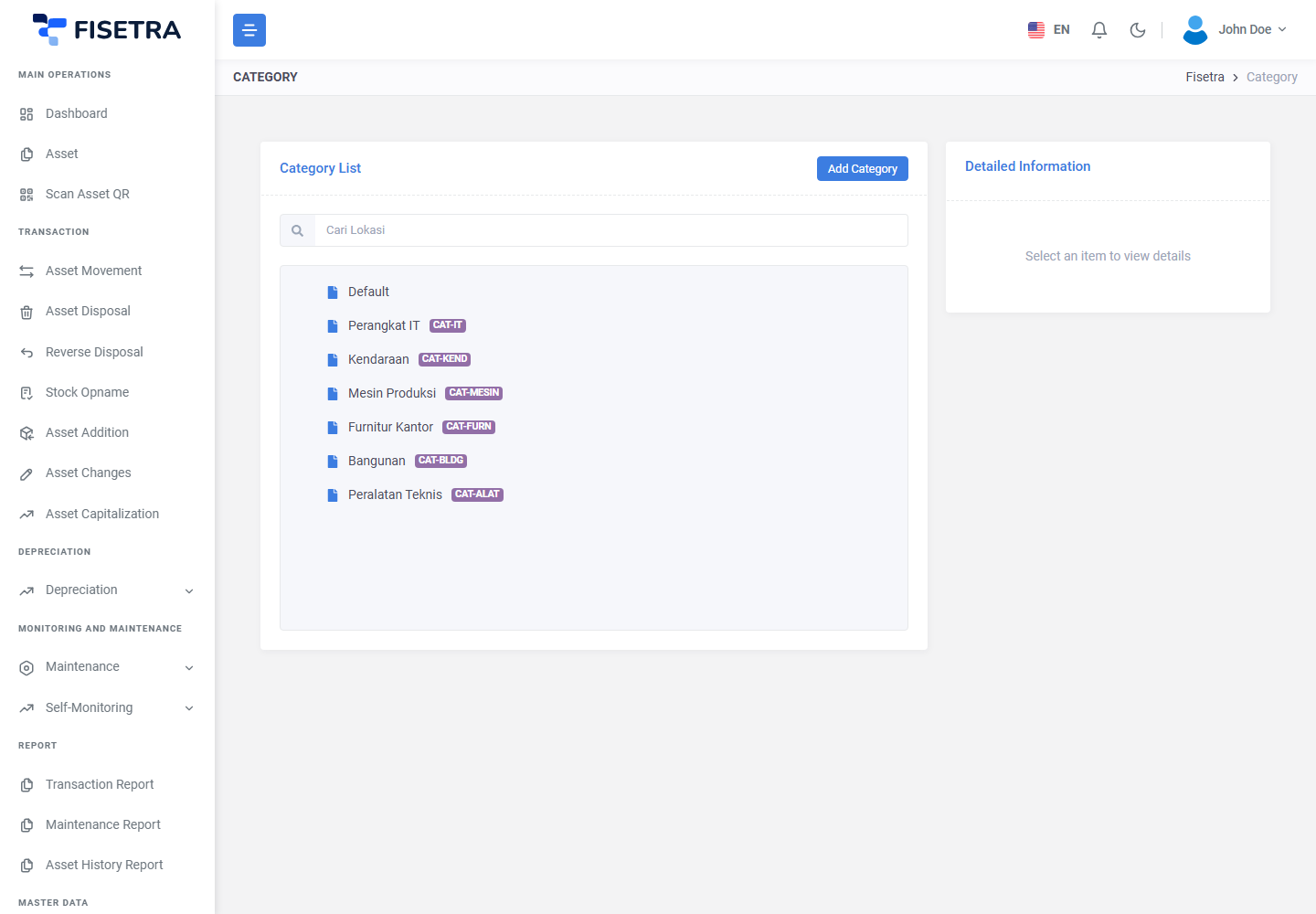
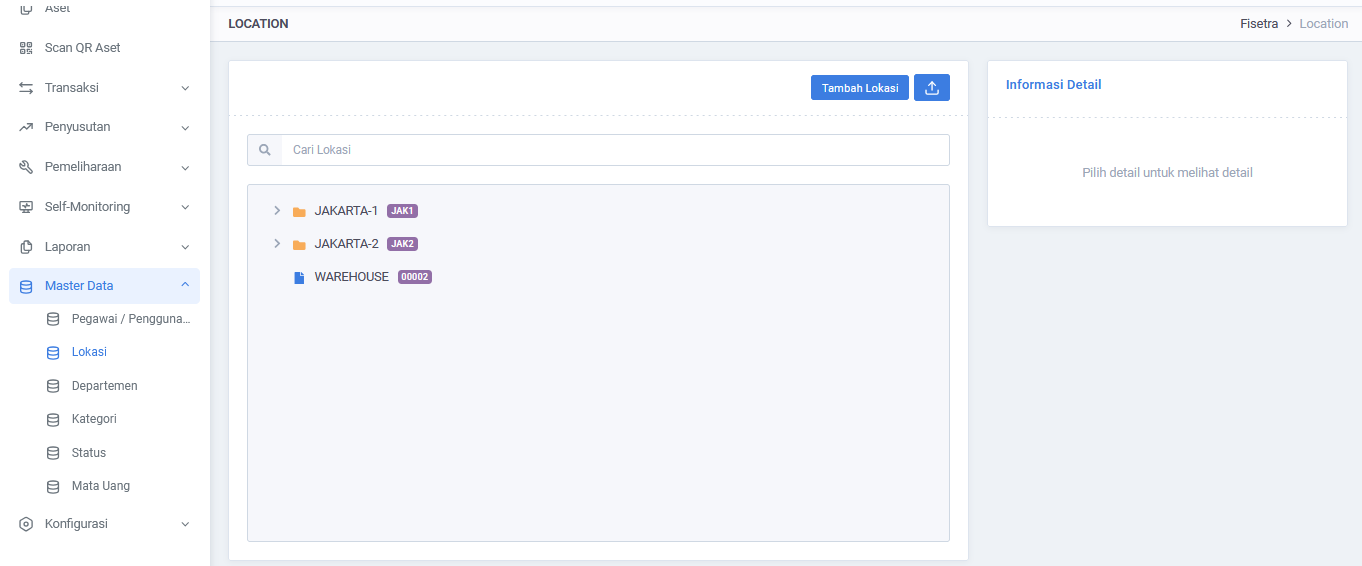
Category and Location are trees
Both support unlimited nesting, so they can mirror how your organisation actually thinks.
Location                          Category
└── Head Office                   └── Vehicle
    ├── Floor 3                       ├── Car
    │   └── Server Room               │   └── Sedan
    └── Floor 4                       └── Motorcycle
Create the parent first, then add children beneath it. Assign assets to the most specific node that is true — an asset in the server room belongs to Server Room, not to Head Office.
This matters beyond tidiness: asset visibility is granted per location and per category, so the shape of these trees decides how precisely you can scope what people see.
Use Importing master data to maintain categories, locations, departments, asset users and statuses from one Excel workbook.
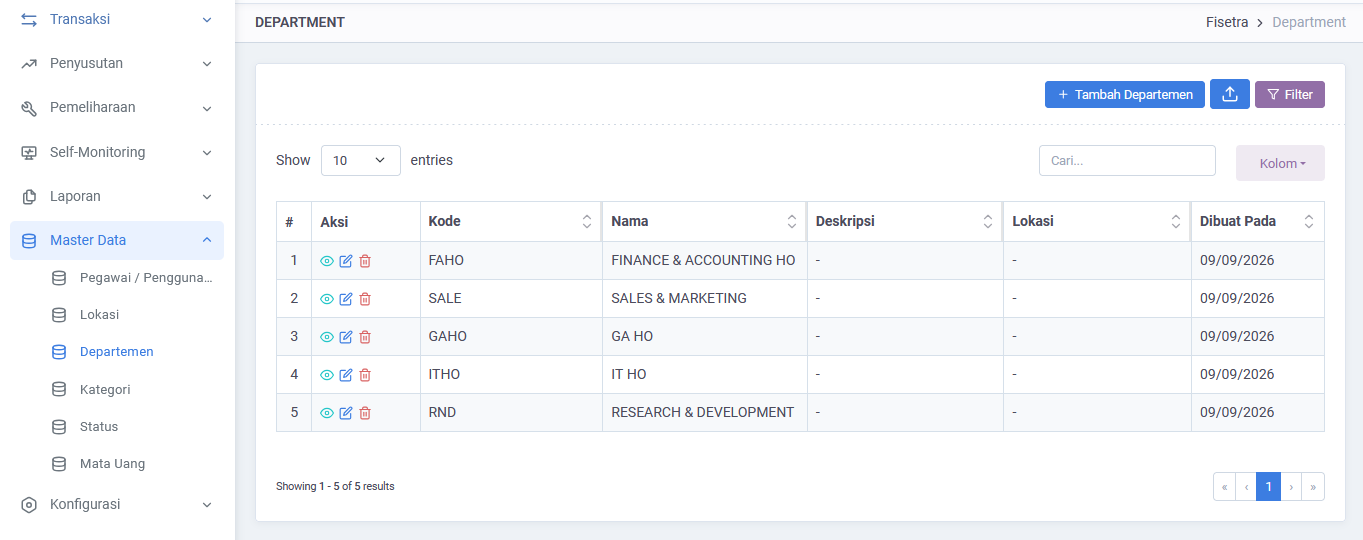
Department codes are generated
New departments get a code automatically from the numbering configuration rather than being typed. See Company configuration if the format is not what you want.
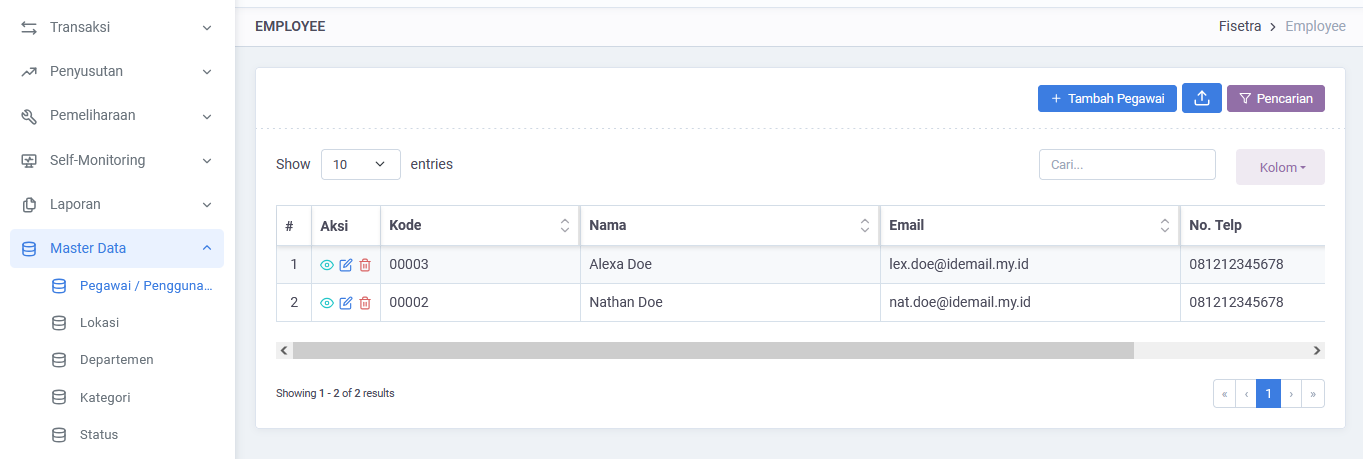
Employee / Asset User
These are the people assets can be assigned to — the "who is responsible" on an asset record and on movement documents.
An entry here is a record of a person, not a Fisetra login. Someone can be responsible for assets without being a Fisetra user, and a Fisetra user does not automatically appear here. People who sign in are managed separately in Users and access.
Use the Import Master Data upload icon for bulk additions, updates and deletions; see Importing master data. When selecting a responsible person on a form, search by name, code or email.
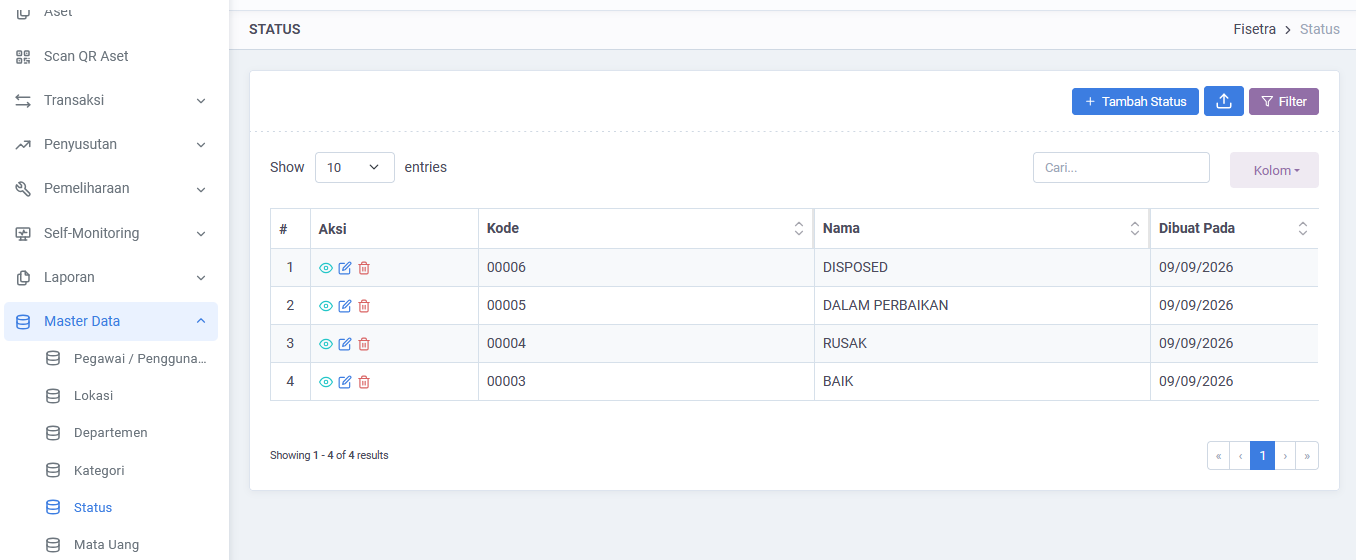
Status
Statuses describe an asset's condition, and each is typed as active or inactive so Fisetra knows whether an asset in that state is still in service.
Statuses are also set by documents. A movement document can set a status for the assets it moves, so keep the list short enough that people can choose the right one confidently.
Currency
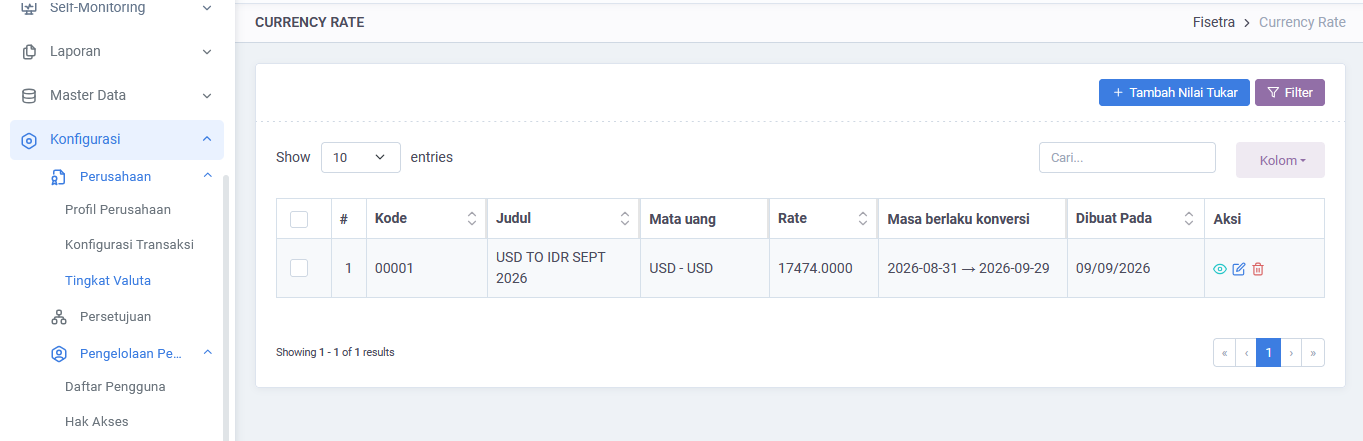
Currency holds the currencies you record values in. Your company's main currency is set during registration and appears on the company profile.
Exchange rates are maintained separately under Configuration → Company → Currency Rate, because rates change on a schedule while the currency list rarely does. See Company configuration.
When creating a currency, choose Currency from the list. The edit form provides Currency Code, Symbol and Description.
Creating a record
The flow is the same on all six lists.
- Open the list from Master Data.
- Select the add button.
- Fill the form. For Category and Location, pick the parent if this is a child.
- Save.
The record is available immediately — there is no approval step on master data, unlike asset transactions.
Editing and deleting
Editing takes effect immediately everywhere the record is used. Renaming a location renames it on every asset pointing at it; it does not create a new location or move anything.
Deleting is refused when the record is in use. This is deliberate — it protects the history on assets and documents that reference it. If you no longer want a record used, the better move is usually to rename it clearly or, for statuses, mark it inactive, rather than trying to remove it.
Common problems
| Problem | Why | What to do |
|---|---|---|
| A list is missing from the menu | Your role does not include the view capability for it | Ask your administrator |
| Cannot delete a record | It is referenced by an asset or document | Rename it, or mark it inactive instead |
| A new department has an unexpected code | Codes come from the numbering configuration | Adjust it in Company configuration |
| Import rejected rows | Values did not match existing master data, or required columns were blank | Read error details, correct the workbook, and upload again |
| A child appears in the wrong place | It was created under the wrong parent | Edit it and change the parent |
Next
With master data in place, record your assets — see Managing assets — or continue configuring the company in Company configuration.